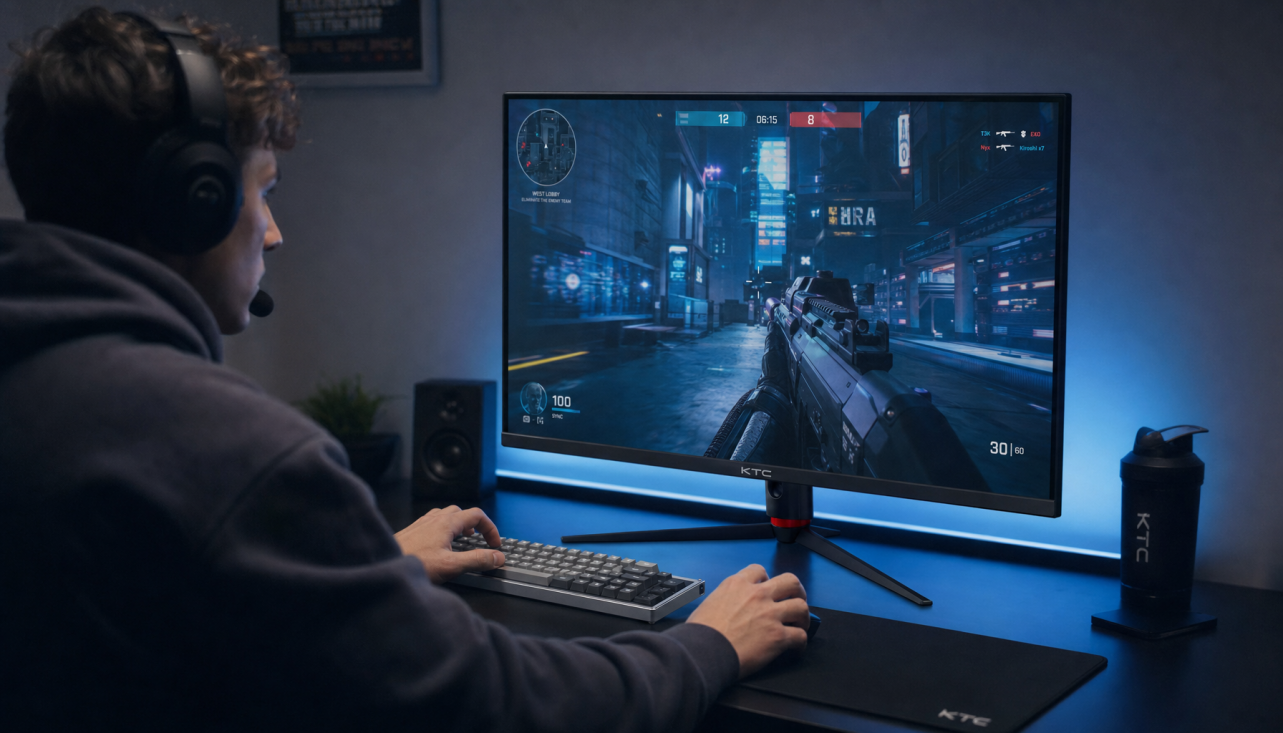
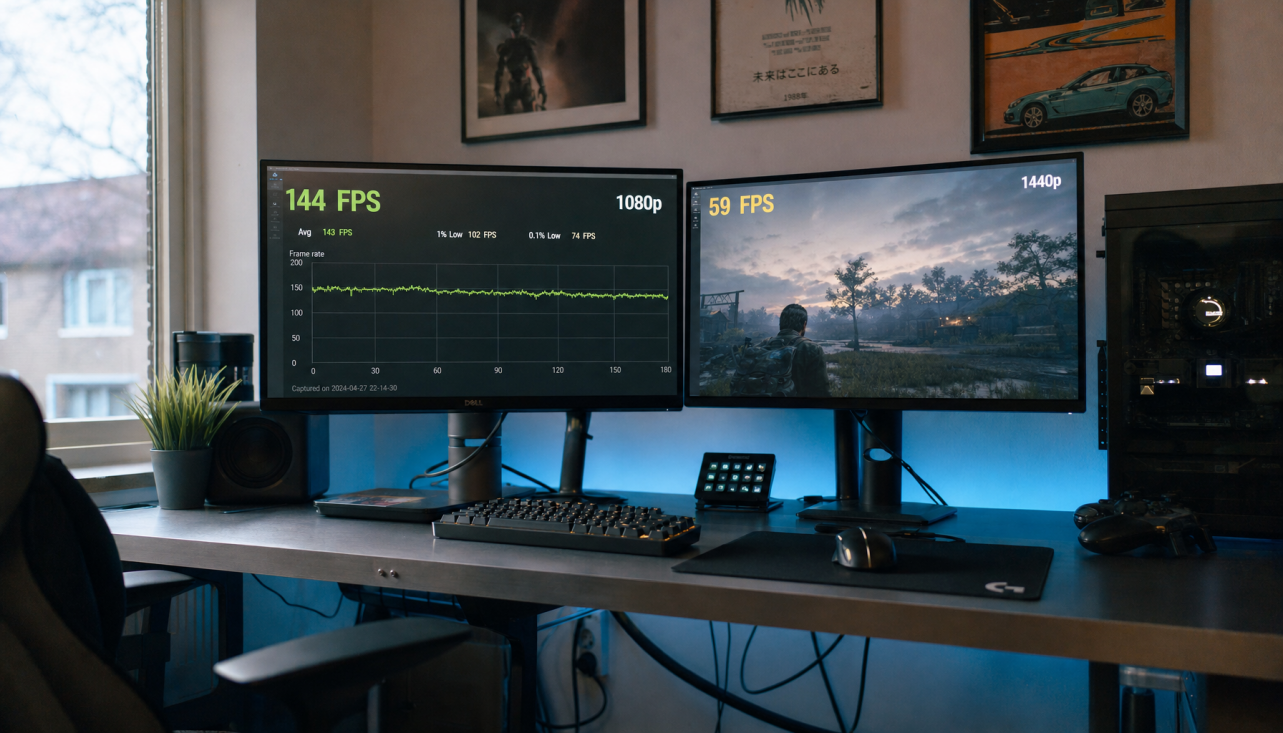
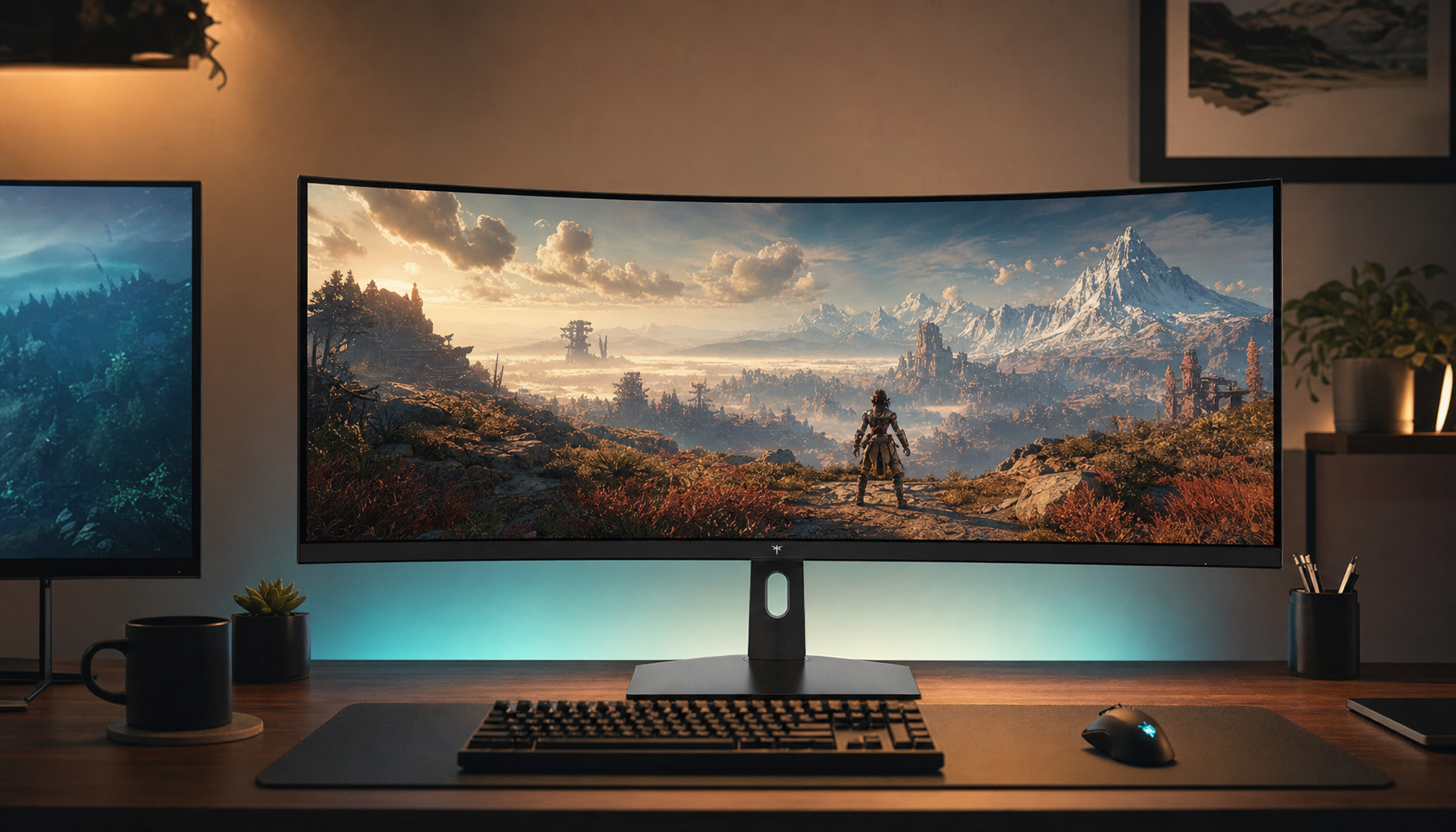
OLED can hit true black because each pixel can shut off completely. Near-black crush happens because the first visible steps above black are so tiny that gamma, brightness, room lighting, and processing can make dark detail disappear before your eyes can separate it.
True Black Is a Pixel-Level Advantage
An OLED panel is self-emissive: each pixel produces its own light instead of relying on a backlight. That is why OLED displays can turn black pixels off and avoid the gray haze that LCDs often show in dark scenes.
For gaming monitors, that creates the premium OLED look: space scenes feel deeper, horror games look more dimensional, and HDR highlights punch harder because black is not being lifted by backlight leakage.

But true black is only RGB 0. The hard part is everything just above it: RGB 1, 2, 3, and 4. Those values are not black, but on a real screen in a real room, they may be too dim to see clearly.
Near-Black Crush Is a Visibility Problem
Black crush means dark gray information collapses into black, so shadow texture, clothing folds, cave walls, or enemy silhouettes lose separation. OLED’s 0.00-nit black floor creates extremely small luminance steps near zero, making near-black detail difficult to distinguish.

A practical example: on a 200-nit OLED using a 2.2 gamma curve, RGB 3 may be the first shade many users can reliably see. At lower brightness, RGB 4 may become the first visible step.
That does not mean the panel is bad. It means OLED’s strength creates a precision challenge: the gap between off and barely on is visually severe.
Some crush is source-side, too, because compressed streams, game HDR settings, and aggressive tone mapping can remove dark detail before the monitor displays it.
Why Settings Can Make OLED Shadows Worse
Gamma is usually the biggest lever. Higher gamma deepens midtones and shadows, which can look cinematic but may bury the first few dark steps. Lower gamma reveals more shadow detail, but it can also flatten the image.
Brightness also matters, but raising it carelessly can lift true black and weaken OLED’s main advantage. The goal is not to make everything brighter. The goal is to keep black anchored while separating the first visible grays.
Near-black crush often comes from gamma set too high for the room, OLED brightness set too low for shadow detail, HDR enabled without proper calibration, a console or PC output range mismatch, or bright reflections reducing dark-scene visibility.
For games, calibration advice often centers on making the darkest logo or symbol barely visible, not obvious. That keeps tension and contrast while restoring useful shadow cues, especially in competitive or cinematic titles where both immersion and visibility matter.

How to Reduce Crush Without Washing Out the Image
Start with the monitor’s OSD, not GPU filters. Set brightness for the room, keep contrast below clipping, then adjust in-game gamma using a dark test scene you actually play.
If you use HDR on a PC, run the HDR calibration tool and compare the monitor’s HDR modes. QD-OLED users often get better PC results after tuning minimum brightness, peak brightness, and saturation instead of trusting defaults.
Quick OLED Shadow Steps
- Use native resolution and the correct RGB range.
- Calibrate SDR and HDR separately.
- Lower gamma slightly if shadows vanish.
- Add soft bias lighting behind the display.
- Avoid extreme black equalizer settings unless competing.
For office productivity displays and portable OLED screens, the same logic applies. A true-black theme can save power and look clean, but dark gray UI layers may preserve more readable depth than pure #000000 everywhere. The best OLED experience is not just blacker; it is controlled, visible, and tuned to the way you actually use the screen.