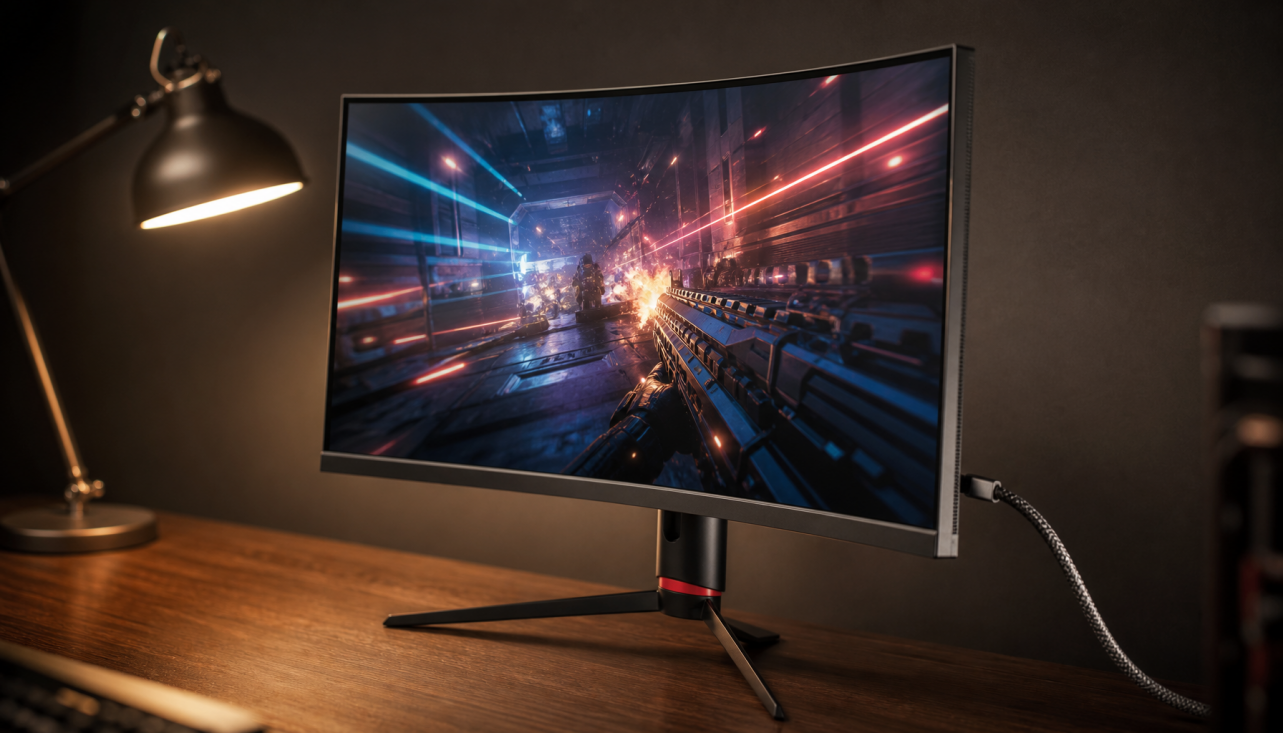
Open OSD monitor firmware is worth attention in 2026 if you want more control over a monitor’s behavior, but it is not a universal upgrade and it is not a safe default for every display. For most buyers, the real question is whether extra tuning access solves a concrete problem, or whether stability and warranty protection matter more.

Why Open OSD Became a 2026 Talking Point
Open OSD sits in the growing gap between what enthusiasts want and what many stock menus expose. The appeal is simple: some users want clearer access to overdrive, color, and preset behavior instead of guessing through vague factory modes. That matters most if you already notice motion artifacts, inconsistent color, or presets that feel too conservative.
The key boundary is that openness does not automatically mean better performance. It only means the monitor may let you tune more directly, which can help in the right setup and do nothing in the wrong one. If your current display already looks stable and predictable, community firmware is more curiosity than necessity.
For readers comparing motion behavior, Why Your Monitor’s Overdrive Setting Might Be Creating Visual Artifacts is the most relevant follow-up because overdrive is where many “hidden performance” claims either pay off or fall apart.
What Open OSD Actually Changes
Open OSD is best understood as a control-layer change, not a panel upgrade. It may expose more options for motion tuning, color tuning, and preset behavior, but it does not rewrite the panel’s physical limits.

For motion, overdrive is the setting that matters most. In plain terms, it is the monitor’s attempt to speed up pixel transitions. Used carefully, it can reduce trails. Pushed too hard, it can create overshoot, also called inverse ghosting, where bright or dark edges appear behind moving objects.
For color, a custom profile can help a monitor match a user’s preference or workflow better, but it does not guarantee accuracy on its own. If you care about neutral color rather than a pleasing look, How to Verify Your Monitor Calibration Is Actually Accurate Without Professional Equipment is the better lens than treating any custom profile as automatically “correct.”
What stays fixed is just as important. The scaler, backlight behavior, and base panel characteristics still shape the result. If the underlying hardware is the limit, more menu access only gives you more ways to tune around it.
Why Power Users Care About Transparency
Transparent firmware matters most when you value repeatable settings and understandable behavior over marketing language. That is the real draw for informed skeptics. You can inspect, adjust, and compare settings more deliberately instead of trusting a single “Game” preset to solve everything.
The upside is strongest in three cases:
- You already know the specific issue you want to tune, such as motion artifacts or oversaturated color.
- You are comfortable changing one variable at a time and checking the result.
- You prefer documentation and control to convenience.
The same transparency is much less useful if you want a display that just works out of the box. In that case, the extra flexibility can feel like extra maintenance.
If you are browsing broadly rather than modifying a specific unit, the Gaming Monitor collection is a safer starting point than assuming firmware openness is the deciding factor.
How to Verify an Open OSD Implementation
Before you trust any community guide, verify the exact model and firmware path. Open OSD-style support is model-specific, not brand-wide, so a guide for one panel may be irrelevant to another.
A practical check sequence looks like this:
- Confirm the exact monitor model and current firmware version.
- Check whether the update path is documented and reversible.
- Save the current settings first so you have a rollback point.
- Change one setting at a time.
- Test with familiar game scenes, gray ramps, and text edges.
- Stop immediately if the display becomes unstable or shows obvious artifacts.
That order matters because it prevents confusion. If you change several things at once, you will not know whether the result came from overdrive, color tuning, or the firmware path itself.
Trade-Offs, Warranty Risk, and Panel Longevity
The trade-off is straightforward: more control can improve fit, but it also increases the chance of making the picture worse or the setup harder to recover. Overdrive tuning is the clearest example. More aggressive settings can sharpen motion, yet they can also add visible artifacts.
| Factor | Possible Upside | Possible Downside | Caution Level |
|---|---|---|---|
| Motion tuning | Cleaner motion or less trailing | Overshoot or inverse ghosting | High |
| Color tuning | Better preference fit | Drift away from neutral accuracy | Medium |
| Stability | More tailored behavior | More troubleshooting if something breaks | High |
| Warranty | None directly | Possible warranty complications | High |
| Longevity | Conservative settings may feel safer | Aggressive tuning can add uncertainty | Medium to High |
Treat longevity carefully. It is reasonable to say conservative settings are the safer starting point, but there is no universal guarantee that a custom firmware path will preserve lifespan or avoid wear issues. If your display is mission-critical, stock firmware is usually the lower-risk choice.
A Safer Way to Decide Whether to Try It
Use community firmware only if the problem is specific, the model is clearly supported, and you are willing to troubleshoot. That is the best-fit profile.
Skip it if you mainly want plug-and-play reliability, or if the monitor serves as your daily work display and you cannot afford downtime. In those cases, the extra control is usually not worth the recovery burden.
A simple decision filter helps:
- Choose experimentation if you want to solve one visible issue and can roll back.
- Choose stock firmware if stability matters more than tuning freedom.
- Pause if the guide is vague, non-reversible, or not written for your exact model.
That is the cleanest way to avoid regret: do not chase maximum tuning. Look for the smallest change that solves a real problem.
FAQs
Q1. Can Open OSD Improve Monitor Performance?
Sometimes, but only in a narrow sense. It may improve motion tuning or make calibration easier to manage, yet results depend on the monitor and the implementation. The safest expectation is selective improvement, not a universal performance jump.
Q2. What Are the Biggest Risks of Community Firmware?
The main risks are instability, recovery time, and possible warranty complications. Aggressive tuning can also introduce artifacts that are harder to live with than the problem you started with. If you try it, assume rollback planning is part of the process, not an optional extra.
Q3. How Do I Know If My Monitor Supports It?
Check for official documentation, service notes, or explicit firmware instructions for your exact model. If you cannot find a documented path, treat community guides as unverified until they are proven relevant. Support is usually model-specific, not brand-wide.
Q4. Will Custom Color Profiles Affect Accuracy?
Yes, they can affect it, but not always in the direction people expect. A custom profile may improve subjective image preference, while neutral accuracy still depends on how carefully it is validated. If accuracy matters, verify the result instead of trusting novelty settings.
Q5. Should I Use Open OSD on a High-Refresh Monitor?
High-refresh monitors are often the first place enthusiasts explore this idea because motion tuning matters more there. But fast panels can also expose overshoot and instability more quickly. If you need the display for daily work, stability should usually come first.
If you want a monitor category that already prioritizes responsiveness and gaming-focused features, the 4K Monitor collection is the more conservative place to start than assuming every firmware experiment is worth the risk.