Managing a hybrid Mac and PC desk often means wrestling with two sets of peripherals or dealing with laggy cursor movement and unreliable switching. For most hybrid workers, hardware KVM control built into a monitor delivers lower latency, better security, and fewer daily headaches than software sharing apps, especially when you use a corporate VPN or need high-precision input. The choice ultimately depends on your tolerance for network hiccups, wake-from-sleep rituals on Mac, and whether you want a clean one-cable desk.

The Hybrid Desk Dilemma: Software vs. Hardware Workstation Control for Hybrid Mac and PC Desks
Hybrid work has normalized the one-desk, two-machine reality. Many professionals keep a Mac for creative or corporate tasks and a Windows PC for specialized software or gaming. The real bottleneck is rarely the computers themselves. It is the friction of switching a single keyboard, mouse, and monitor between them without lag, dropped connections, or constant replugging.
Two main paths exist. Software peripheral sharing uses apps that send input commands over your local network. Hardware workstation control relies on a physical KVM (Keyboard, Video, Mouse) switch that reroutes signals at the electrical level. Understanding the trade-offs early helps you avoid setups that create more problems than they solve.
Software solutions can feel convenient at first but often reveal limitations once you factor in real-world variables like network stability or corporate security policies. Hardware options, particularly those integrated into modern monitors, reduce cable clutter while providing direct signal paths that avoid many of those issues.
When is Software Peripheral Sharing Sufficient for Your Workflow?
Software sharing works well when your needs are modest. Tools such as Synergy, Barrier, or Microsoft’s Mouse Without Borders let one keyboard and mouse control multiple computers without extra hardware. These apps shine for casual office workers using two personal machines on a stable wired network with no administrative restrictions.
In these low-stakes scenarios the “no-hardware” advantage is real. Setup takes minutes, desk space stays minimal, and cost is essentially zero. You avoid extra boxes or cables while still gaining basic cursor movement across screens.
However, software sharing depends entirely on network conditions. As this comparison of Synergy and hardware KVMs explains, input data travels over the local network, which can introduce latency and jitter during congestion or on Wi-Fi. Corporate environments add another layer: many VPNs or security policies block the local discovery these tools require, as noted in Microsoft’s own Mouse Without Borders documentation.
If your workflow stays within personal machines, simple productivity tasks, and a reliable wired LAN, software can be sufficient. Check your network stability and any IT policies first. If either raises red flags, the convenience quickly evaporates.
Why Hardware KVM Control is the Better Fit for High-Performance Desks
Hardware KVMs operate at the electrical layer, delivering near-zero added latency and eliminating network jitter. This makes them the clearer choice for competitive gaming, high-polling-rate mice, or any task where even small delays feel like “floatiness.” As this guide on KVM switching and gaming latency details, hardware solutions do not interfere with the graphics signal the way network-based software can.
Security-conscious users also benefit. Hardware bypasses the VPN and policy blocks that frequently disable software tools in professional settings. The path is direct and does not rely on software running on either machine, providing OS-agnostic compatibility across macOS and Windows without drivers.
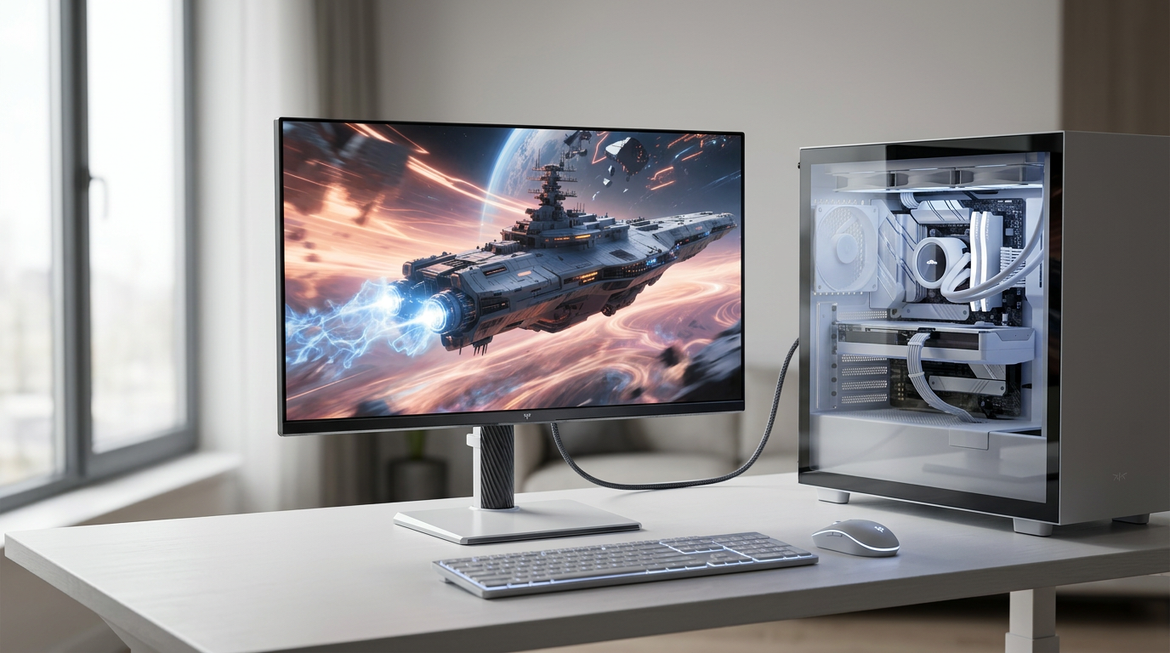
Integrated KVMs inside monitors further simplify the desk. Instead of a separate switch box with multiple cables, one USB-C or HDMI connection often handles video, power, data, and peripheral switching. Monitors like the KTC H49S66 or KTC G27P6 bundle this hardware control with high-refresh panels, turning the display itself into the central hub. The result is a cleaner workspace with fewer points of failure compared with stacking an external KVM on top of an ordinary monitor.
How to Solve Mac and PC Compatibility and USB-C Handshake Issues
Mac users frequently encounter the “morning ritual”: after overnight sleep the monitor stays black until the USB-C cable is unplugged and reinserted. This stems from timing mismatches during the handshake between Apple Silicon, macOS power states, and monitor firmware rather than outright hardware failure.
Community reports from power users highlight that some integrated KVMs in budget monitors can drop peripherals during these low-power transitions. Hardware-level stability helps here, but not every KVM handles the Apple handshake equally well. Tools like BetterDisplay can sometimes force proper wake behavior, yet they add yet another software dependency.
For hybrid desks the most practical mitigation is choosing a monitor whose KVM has been tested with recent macOS versions. Look for models that maintain stable USB-C negotiation across sleep/wake cycles. Our USB-C monitor guide covers key compatibility checkpoints that help avoid daily replugging. When the handshake works reliably, the one-cable promise of hardware KVM becomes far more practical across both Mac and PC.
Reliability and Latency: Comparing Software Lag to Hardware Stability
Latency differences become obvious once you move beyond basic cursor movement. Software solutions typically add 2–15 ms depending on network stability, with spikes far higher on Wi-Fi or during VPN activity. Hardware KVMs stay under 0.1 ms because they switch signals electrically rather than packetizing them across a network.
This gap matters most for high-refresh gaming or precision work. A 1000 Hz mouse can feel noticeably less responsive when software caps effective polling rates or introduces jitter. Hardware passes those high-frequency signals cleanly.
Maintenance burden also diverges. Software updates arrive frequently but usually carry low risk. Firmware updates on some monitors, especially budget models, often require FAT32 USB sticks and specific files like MERGE.bin, creating a higher-stakes ritual that can brick the display if interrupted. Integrated solutions in higher-quality monitors tend to reduce how often you face these updates.
The chart below visualizes these trade-offs across common hybrid scenarios.

Hardware KVMs also avoid the “toggle tax” many users report when switching display modes or inputs through on-screen displays multiple times a day. A dedicated physical button or hotkey on an integrated KVM feels more immediate and reliable.
Which Workstation Control Method Should You Choose for Your Hybrid Setup?
Choose software peripheral sharing if you run two personal machines, stay within basic productivity, maintain a stable wired network, and have no VPN or security restrictions. In these cases the simplicity and zero added hardware win.
Choose hardware KVM control when any of the following apply: you use a corporate laptop behind a VPN, compete in games or need high-polling input, value a truly clean one-cable desk, or want to minimize daily wake-from-sleep friction on Mac. Integrated solutions in performance monitors remove most external KVM drawbacks while preserving the electrical-layer advantages.
Monitors such as the KTC H49S66 or KTC H27P6 demonstrate how hardware KVM can be embedded without sacrificing refresh rate, color accuracy, or ergonomics. They suit users who want both workstation flexibility and high-performance display quality in one device. For broader options explore the gaming monitor collection or office monitor collection and confirm KVM support for your specific Mac and PC combination.
Our dual monitor productivity guide and work monitor buying guide offer additional checkpoints for building a hybrid desk that actually reduces friction rather than adding it.
Does Software KVM Work With Corporate VPNs?
Software tools often fail in corporate environments because VPNs and security policies block the local network discovery they require. Hardware KVMs avoid this entirely since they do not rely on network traffic between machines.
How Much Latency Does Software Sharing Add?
Software KVMs typically add 2–15 ms of input lag depending on network conditions, with noticeable jitter during congestion. Hardware solutions stay near zero added latency, which matters for high-refresh or precision tasks.
Why Do Mac Users Often Need to Replug Cables With KVMs?
Mac wake-from-sleep frequently involves timing mismatches in the USB-C or HDMI handshake between macOS and monitor firmware. Some KVM implementations handle this better than others; choosing a monitor with proven Mac compatibility reduces the daily ritual.
Is an Integrated Monitor KVM Better Than an External Box?
Integrated KVMs reduce cable clutter and eliminate a separate device. They provide the same electrical switching benefits while simplifying the desk, provided the monitor’s firmware supports stable switching across your Mac and PC.
When Should I Avoid Software Sharing Altogether?
Avoid software if you game competitively, use a managed corporate laptop with VPN, or cannot guarantee a stable wired network. In those cases hardware control, especially integrated into a capable monitor, removes the most common sources of frustration and regret.