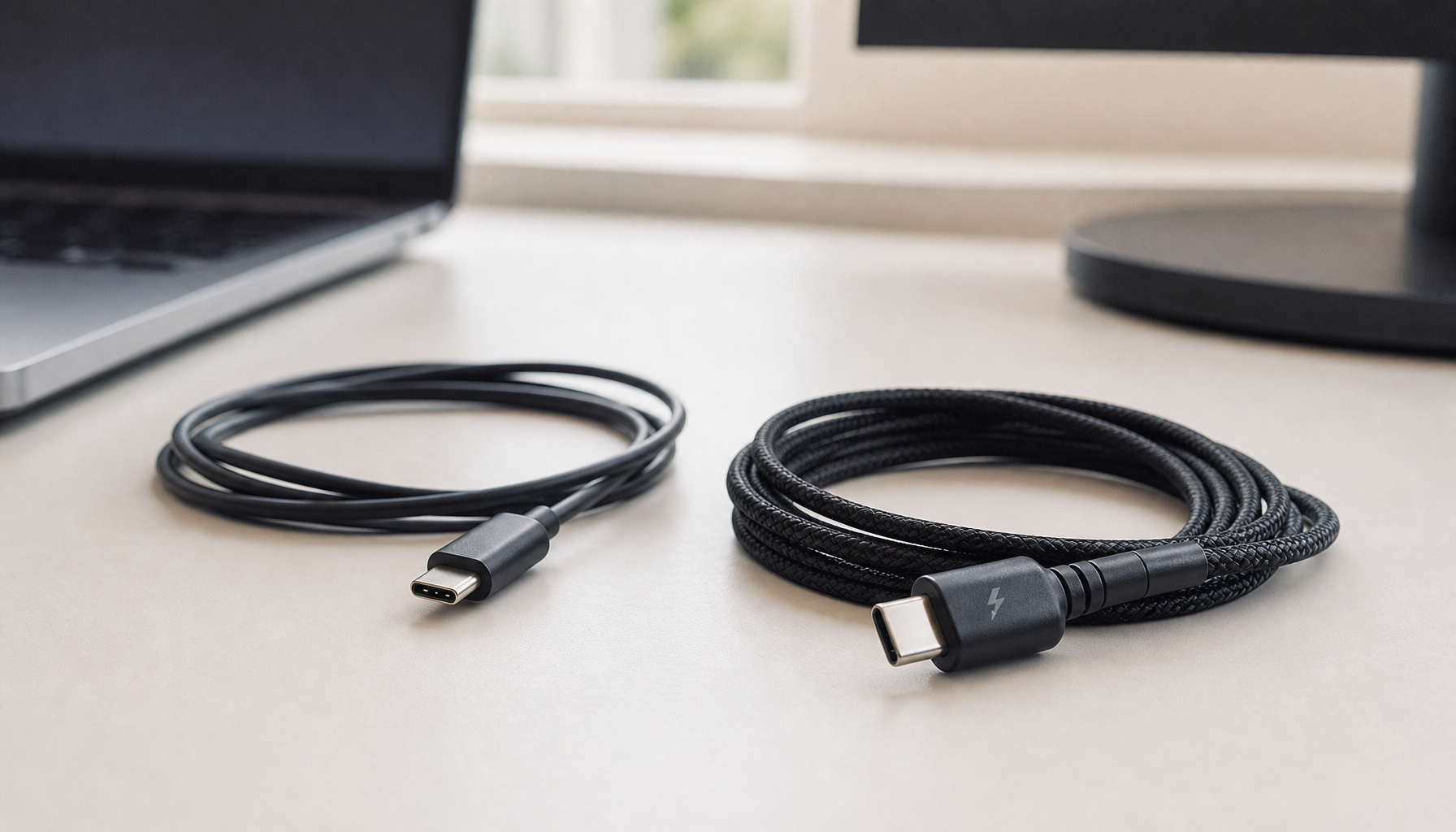
Choosing the right cable between your device and monitor can mean the difference between hitting 4K at 160Hz with full HDR and adaptive sync or being limited to 60Hz with washed-out colors and stuttering. For most PC gamers, DisplayPort remains the top choice for high-refresh setups, while consoles demand HDMI 2.1 and laptop users benefit most from USB-C with DisplayPort Alt Mode—provided you match the cable to your exact resolution, refresh rate, and feature needs.

Bandwidth and Spec Limits: Why Your Cable Dictates Performance
Your cable’s bandwidth determines the maximum resolution and refresh rate it can carry without dropping features or forcing compression. As the official HDMI 2.1 specification overview confirms, HDMI 2.1 delivers up to 48 Gbps. This enables uncompressed 4K at 120Hz or 144Hz on many high-end displays, along with 8K at 60Hz.
DisplayPort 1.4 tops out around 32.4 Gbps, which is enough for 4K at 60Hz or 1440p at 144Hz natively but often requires Display Stream Compression (DSC) for higher combinations. DSC is a visually lossless compression method that effectively triples usable throughput in supported hardware; however, it needs compatible GPUs (typically RTX 20-series or newer, or equivalent AMD) and monitors. The VESA DisplayPort 2.1 standard pushes bandwidth to 80 Gbps (UHBR 20), supporting 4K at 240Hz+ or even 16K with headroom.
USB-C with DP Alt Mode matches the video performance of a dedicated DisplayPort cable but shares lanes between video, data, and power. This creates a practical limit: full 4K high-refresh video often reduces USB speeds to 2.0 levels unless you adjust monitor settings.
The chart above clarifies where each standard has comfortable headroom. Labels rated “3” indicate full native support in typical setups, while “2” means DSC is usually required or features may be limited. “High Speed” or “Ultra High Speed” labels on the cable itself matter more than printed version numbers—always prioritize certified versions for advertised performance.
Gaming Performance: Why DisplayPort Remains the PC Gaming King
For PC gamers chasing 144Hz or higher with adaptive sync, DisplayPort generally delivers the cleanest experience. It supports G-Sync and FreeSync more reliably across multi-monitor daisy-chaining via Multi-Stream Transport (MST), which HDMI does not offer. The VESA DisplayPort resources highlight this bandwidth advantage for future-proofing high-refresh 4K or 1440p panels.
Consoles tell a different story. The PlayStation 5 and Xbox Series X require HDMI 2.1 to unlock 4K at 120Hz, Variable Refresh Rate (VRR), and Auto Low Latency Mode (ALLM). Standard Adaptive-Sync on a monitor does not guarantee console VRR compatibility—HDMI 2.1 Forum-certified VRR is the reliable path. As detailed in technical analyses like those from Digital Foundry, this creates a clear split: HDMI 2.1 for living-room consoles, DisplayPort for desktop PC rigs.
If you own a monitor like the KTC H27P6, which supports dual-mode 4K@160Hz and 1080p@320Hz, start with the included cable. It is certified for the monitor’s advertised modes on both HDMI 2.1 and DP 1.4 ports.

Common regret occurs when users assume any “high-speed” cable will deliver advertised specs. An older HDMI 2.0 cable on a 4K 144Hz monitor will cap you at 60Hz, and mismatched adaptive sync can introduce stuttering even when the monitor advertises support.
The USB-C Advantage: One-Cable Productivity for Laptops
USB-C with DP Alt Mode can carry video, power, and data over one cable, making it ideal for laptop users who want a decluttered desk. The official DisplayPort over USB-C guide confirms it transmits the same video quality as a dedicated DisplayPort connection when the laptop port supports Alt Mode. Combined with USB Power Delivery, a single cable can charge a laptop at up to 90W or 100W while driving the monitor and passing data to peripherals. See the USB-IF Power Delivery specification for the technical limits.
However, lane sharing creates a real trade-off. In 4-lane video mode you get full DisplayPort 1.4 bandwidth but USB ports often drop to 2.0 speeds. Switching to 2-lane mode restores faster USB 3.0 data but halves video bandwidth, limiting many 4K high-refresh setups unless DSC is active. Many monitors include an on-screen display (OSD) option called “USB-C Prioritization” that lets you toggle this balance.
Mac users should note a common friction point: some Apple Silicon setups experience wake-from-sleep failures with high-resolution USB-C connections. While the convenience is high, you may occasionally need to unplug and replug or use a dedicated DisplayPort cable for reliability. Our guide on How a USB-C Monitor Can Streamline Your Workspace explores these productivity setups in more detail, and the technical breakdown in DisplayPort Alternate Mode Over USB-C: How Video, Data, and Power Share the Same Lanes clarifies the lane-sharing mechanics.
For hybrid work or creator desks, USB-C shines when your laptop and monitor both support 90W+ Power Delivery and full Alt Mode. Otherwise, a dedicated cable plus a separate charger may be more stable.
Beyond the Label: How to Identify and Verify Certified Cables
Marketing terms like “8K Ready” or “High Speed” frequently overpromise. The safest approach is to buy cables with visible certification logos and, for DisplayPort, to avoid those with an active Pin 20 unless they are VESA-certified. Non-certified cables can sometimes allow power to flow back into the graphics card, causing boot failures or, in rare cases, hardware damage. This community-reported issue makes certification non-negotiable for peace of mind.
Look for the official “Ultra High Speed HDMI” hologram on HDMI cables—the HDMI Licensing Administrator cable resource explains how to verify them using the QR code and companion app. For DisplayPort, search the VESA certified product database or look for “DP40” or “DP80” markings on the cable packaging for 2026-era 4K and 8K performance.
A practical self-check: if your PC refuses to boot with a new DisplayPort cable connected, disconnect it immediately and test with a known-good certified cable. Starting with the cable included in your monitor box, such as those bundled with KTC models, usually avoids these problems.
Selection Guide: Which Cable Should You Plug In Today?
Match the cable to your primary device first, then confirm it supports your monitor’s advertised resolution and refresh rate.
Consoles (PS5, Xbox Series X): Use a certified HDMI 2.1 “Ultra High Speed” cable. This is required for 4K@120Hz, VRR, and ALLM. Models such as the KTC H27P6 or KTC H32P22P are designed around these HDMI 2.1 ports.
PC Gaming Desktops: Prefer certified DisplayPort 1.4 or 2.1 cables. They provide the best support for G-Sync/FreeSync, multi-monitor MST, and the highest refresh rates on models like the KTC H27E6 or Mini-LED options in the gaming monitor collection.
Laptops and Hybrid Work: Choose a high-quality USB-C cable that supports video (DP Alt Mode), 65–90W Power Delivery, and your target resolution. Check your laptop’s specs and the monitor OSD for lane prioritization. The KTC H27P3 5K model pairs especially well with Mac or Windows creator laptops when full sharpness and color accuracy matter.
Quick Checklist
- Confirm your source device’s port version and capabilities.
- Verify the monitor’s input specs (most KTC boxes list supported modes per port).
- Buy only certified cables—start with the one included with your monitor.
- For 4K@144Hz or higher on older ports, ensure both GPU and monitor support DSC.
- Test the setup at your target refresh rate and enable adaptive sync in both the monitor OSD and graphics control panel.
Following this order prevents most “I bought the right monitor but it doesn’t work right” issues. If you already own a KTC monitor, the included cable is the safest starting point and is matched to the product’s HDMI 2.1 or DP 1.4 ports.
Can USB-C Replace Both HDMI and DisplayPort for All Uses?
No. While USB-C with DP Alt Mode delivers equivalent video quality, lane sharing often forces a compromise between maximum refresh rate and full USB 3.0 peripheral speeds. It is excellent for laptop docking but less ideal for desktop PCs needing the absolute highest bandwidth without trade-offs.
Does HDMI 2.1 Make DisplayPort Obsolete for PC Gaming?
No. DisplayPort still offers advantages in multi-monitor daisy-chaining, broader adaptive sync compatibility on many GPUs, and higher peak bandwidth with DP 2.1. HDMI 2.1 is the mandatory choice for consoles but is not universally superior for PC setups.
Is Display Stream Compression (DSC) Noticeable in Games?
In the vast majority of content it is visually lossless, especially on modern GPUs and monitors. A small subset of competitive players disable it to eliminate any theoretical latency, but for most users the convenience of reaching 4K@144Hz or higher outweighs any imperceptible difference.
What Should I Do If My Monitor Won’t Reach Its Advertised Refresh Rate?
First confirm you are using a certified cable matched to the port. Check that the GPU driver, monitor OSD, and Windows display settings all allow the target mode. On USB-C connections, toggle the monitor’s USB prioritization setting. If the issue persists, test with the cable included in the monitor box.
When Should I Choose a Certified Cable Over a Cheaper Alternative?
Always for high-refresh 4K, HDR, or adaptive sync setups. Cheaper uncertified cables frequently fail to deliver the labeled bandwidth and, in the case of DisplayPort, can introduce the Pin 20 power risk. The small extra cost avoids frustrating troubleshooting and potential hardware issues.