Adaptive Sync delivers tear-free smoothness for the majority of gamers, while Motion Blur Reduction sharpens motion clarity during fast tracking when frame rates remain locked to the refresh rate. The better setting depends on whether your PC maintains stable high frame rates, the lighting in your room, and the type of game you play most.

The Quick Decision: Smoothness or Clarity?
Most gamers benefit from leaving Adaptive Sync enabled as the default. It removes screen tearing and stutter without the input-lag penalty of traditional V-Sync. Motion Blur Reduction, also called backlight strobing, becomes useful only when you can lock your frame rate to match a high refresh rate and you prioritize pixel-perfect tracking in competitive titles.
Check three conditions before enabling Motion Blur Reduction: your GPU must sustain the monitor's refresh rate without dips, your room should not be brightly lit, and you should accept a noticeable drop in brightness plus possible flicker. If any condition fails, Adaptive Sync remains the safer daily choice.
Adaptive Sync: Ending Screen Tearing and Stutter
Adaptive Sync matches the monitor's refresh rate to the GPU's frame output in real time. This synchronization removes the horizontal tearing that appears when frame rates fall between refresh cycles. Unlike V-Sync, it avoids forcing the GPU to wait for the next refresh, so input lag stays low.

The technology shines in titles with fluctuating frame rates such as open-world or story-driven games. As the VESA Adaptive-Sync Display Certification Standard notes, the feature dynamically adjusts timing to keep motion fluid without introducing the heavy lag associated with older synchronization methods.
Motion Blur Reduction: Why Backlight Strobing Wins on Clarity
High-refresh-rate panels still suffer from persistence blur because each frame remains visible on screen for a fraction of a second. Motion Blur Reduction solves this by strobing the backlight off between frames, shortening the time the eye can track moving objects.
The improvement targets motion picture response time rather than pixel gray-to-gray response. When frame rates stay perfectly locked to the refresh rate, the result is noticeably sharper edges during rapid flicks or camera pans. The Motion Blur Reduction FAQ from Blur Busters explains that this technique mimics the impulse-driven clarity of older CRT displays.
The Hidden Costs: Brightness, Flicker, and "Toggle Tax"
Backlight strobing reduces overall brightness, often by 30 to 50 percent, because the light source stays off for part of each cycle. In bright rooms the image can appear dim or washed out. Some users also notice flicker that leads to eye strain during longer sessions.
Most monitors treat the two features as mutually exclusive. Enabling Motion Blur Reduction typically disables Adaptive Sync, forcing manual toggling through the on-screen menu whenever you switch game types. This "toggle tax" adds friction that discourages frequent mode changes.
Scenario Split: Match Your Tech to Your Genre
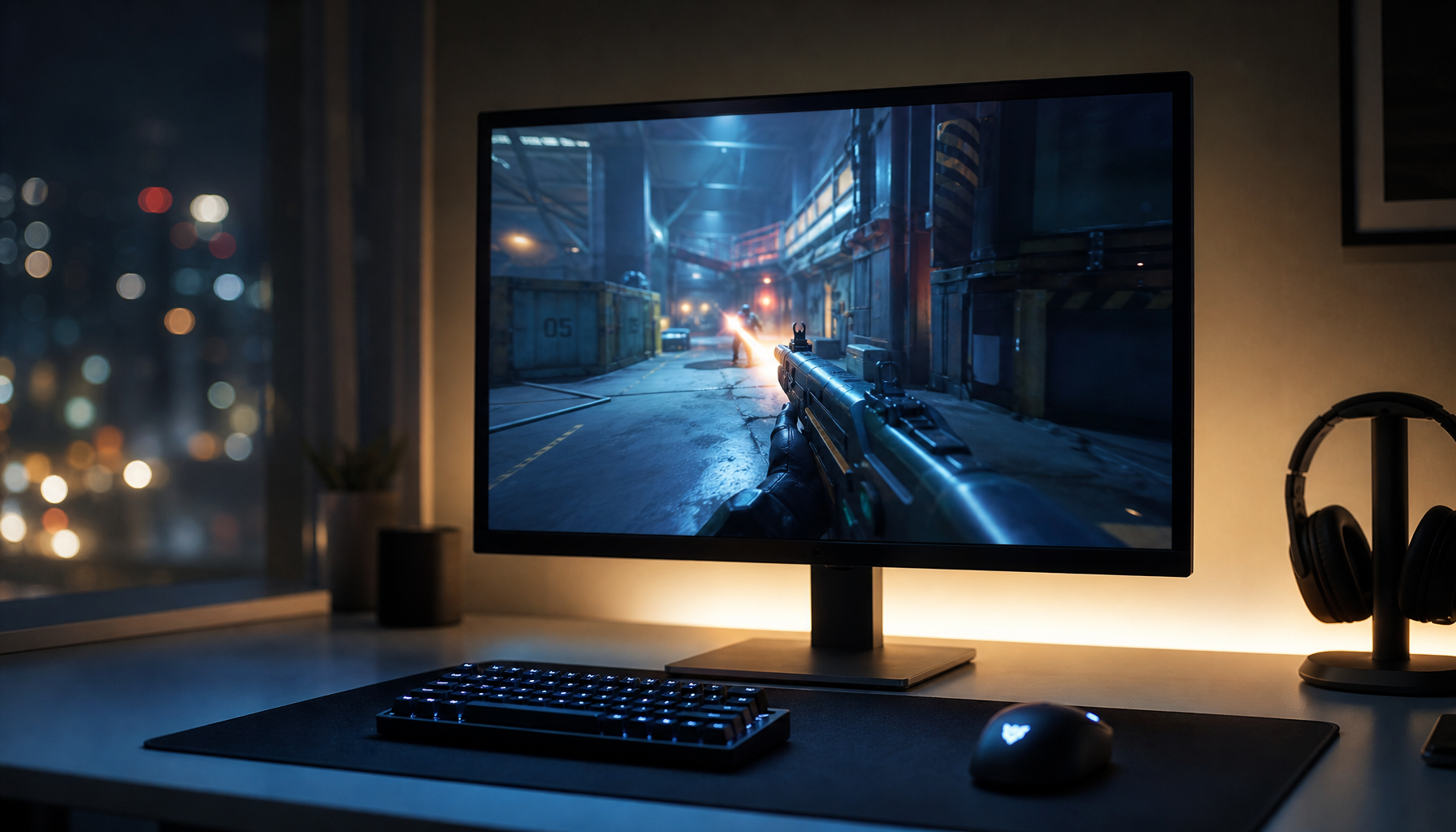
Competitive FPS players who maintain locked high frame rates gain the clearest target tracking from Motion Blur Reduction. Players who encounter variable frame rates in AAA or cinematic titles retain smoother motion and avoid tearing with Adaptive Sync. The following chart maps the practical trade-offs.
How to Test Your Monitor’s Best Mode
Run the Blur Busters UFO Test at blurbusters.com to visualize persistence blur directly. With Motion Blur Reduction active, ghosting or double images indicate the frame rate is not locked; lower the refresh rate until the image stabilizes. For Adaptive Sync, the monitor's on-screen refresh counter should show a matching value that changes smoothly as frame rates vary.
Final Recommendation: The Performance vs. Immersion Verdict
Choose Adaptive Sync when frame rates fluctuate, when you play in bright rooms, or when you value consistent brightness and comfort. Switch to Motion Blur Reduction only when your system delivers locked high frame rates and you accept the brightness and flicker trade-offs for sharper competitive tracking.
Monitors with high native refresh rates and strong motion handling, such as the KTC H25X7, suit locked-frame esports play. For variable-frame immersion with strong HDR contrast, models like the KTC M27P6 pair naturally with Adaptive Sync. Review your typical frame-rate stability and room lighting before committing to one mode as default.
Frequently Asked Questions
Can Motion Blur Reduction and Adaptive Sync Run Together on the Same Monitor?
Most current monitors disable one feature when the other activates because strobing requires fixed timing intervals. A few premium models with hybrid synchronization technology allow limited simultaneous use, but always verify the specific monitor's firmware behavior.
Does Motion Blur Reduction Increase Input Lag?
The strobe itself adds minimal lag, yet the overall system latency can feel different because the reduced brightness sometimes prompts users to raise overall settings. Test both modes with your preferred game to judge perceived responsiveness.
Is Motion Blur Reduction Safe for Long Gaming Sessions?
Some users experience flicker-related eye strain in darker rooms. If you notice discomfort, reduce session length or revert to Adaptive Sync. Brightness loss may also require compensatory monitor or room-lighting adjustments.
Which Games Benefit Most from Motion Blur Reduction?
Fast-paced competitive titles such as Valorant or CS2 reward the clarity gain when frame rates stay locked. Slower or story-driven games rarely justify the brightness and flicker penalties.
How Do I Know If My Frame Rate Is Stable Enough for Motion Blur Reduction?
Use an in-game frame-time graph or overlay. Variance under roughly 2 ms supports strobing without crosstalk. Larger swings indicate Adaptive Sync will deliver smoother results.