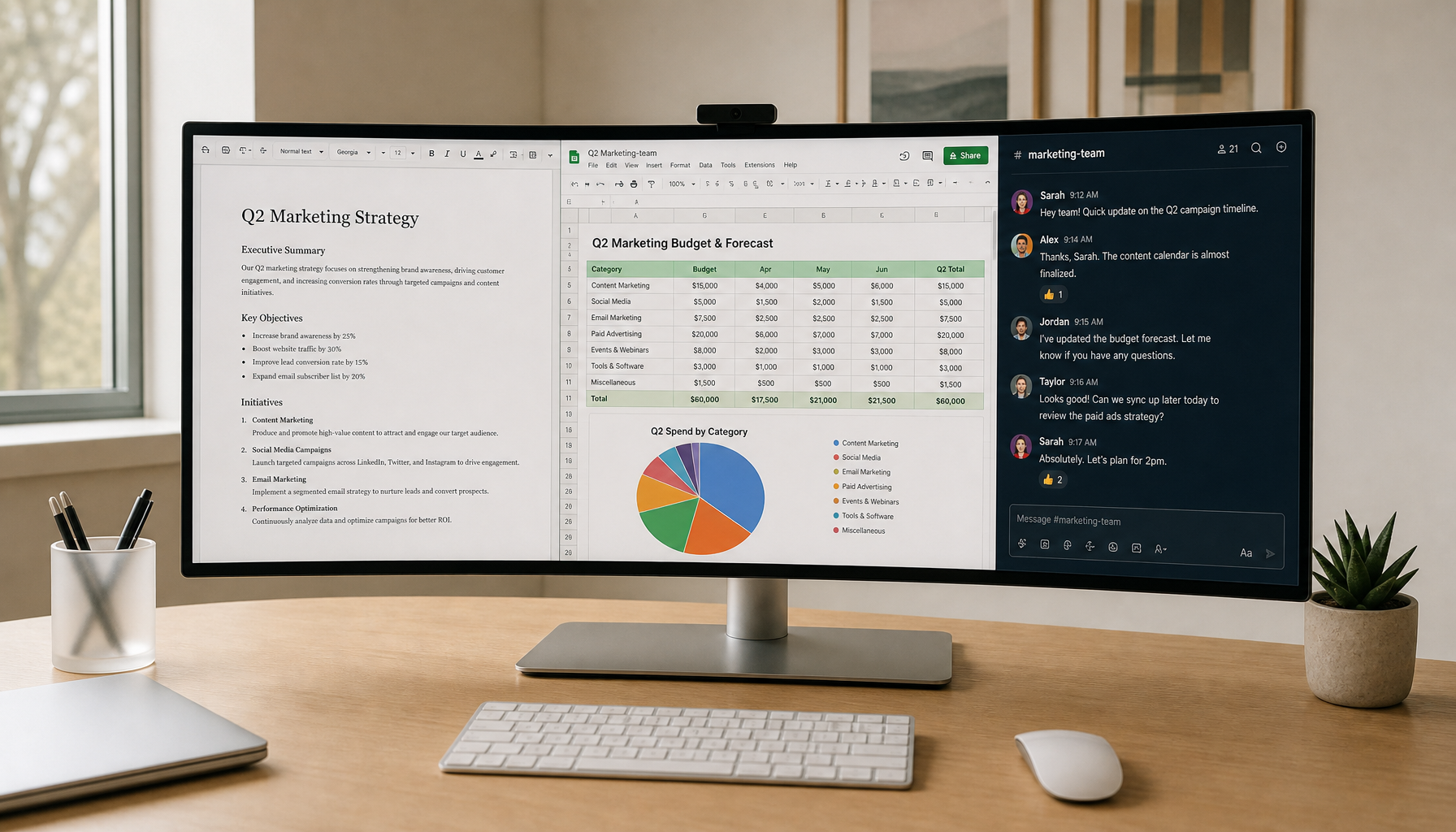
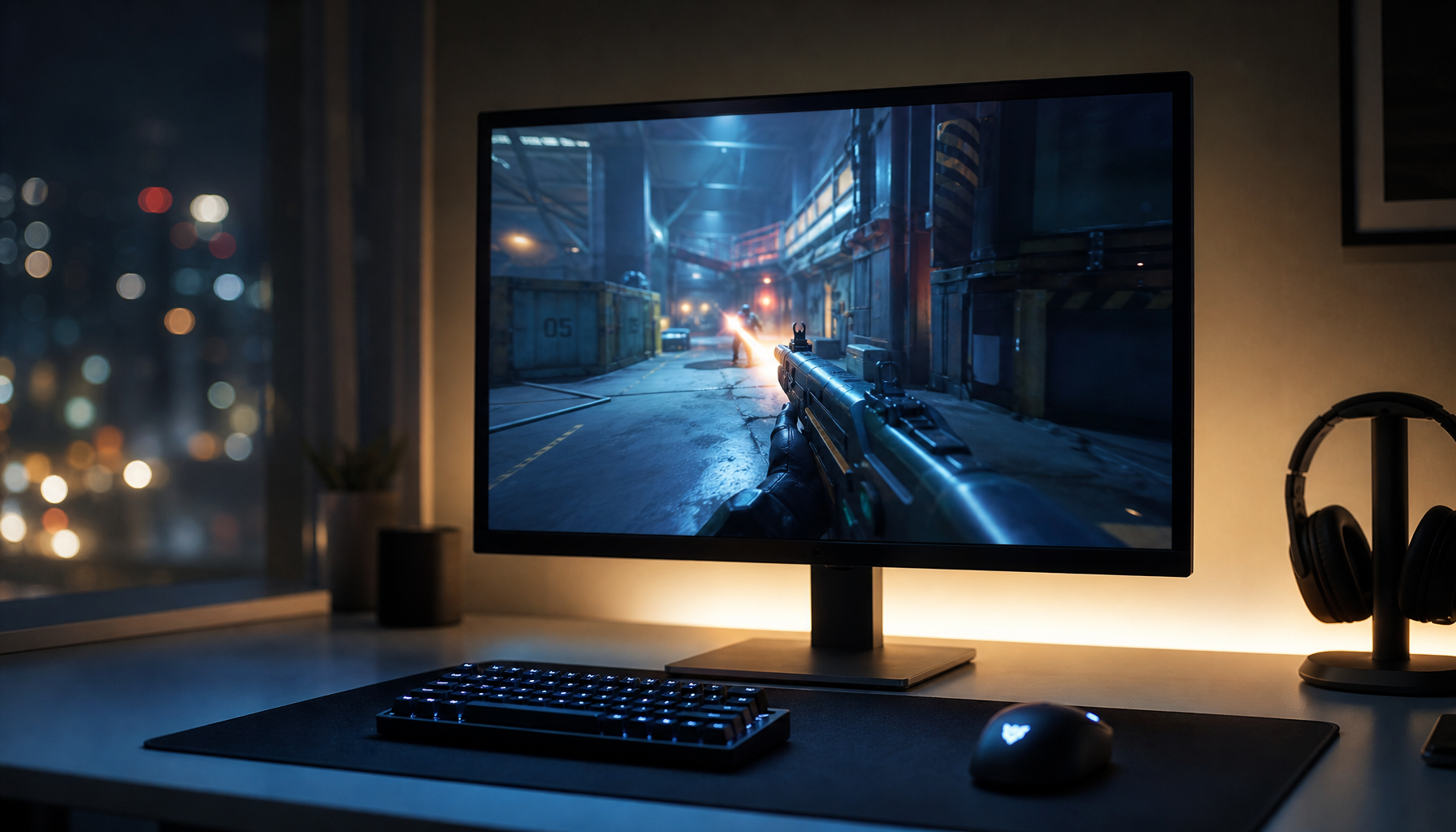
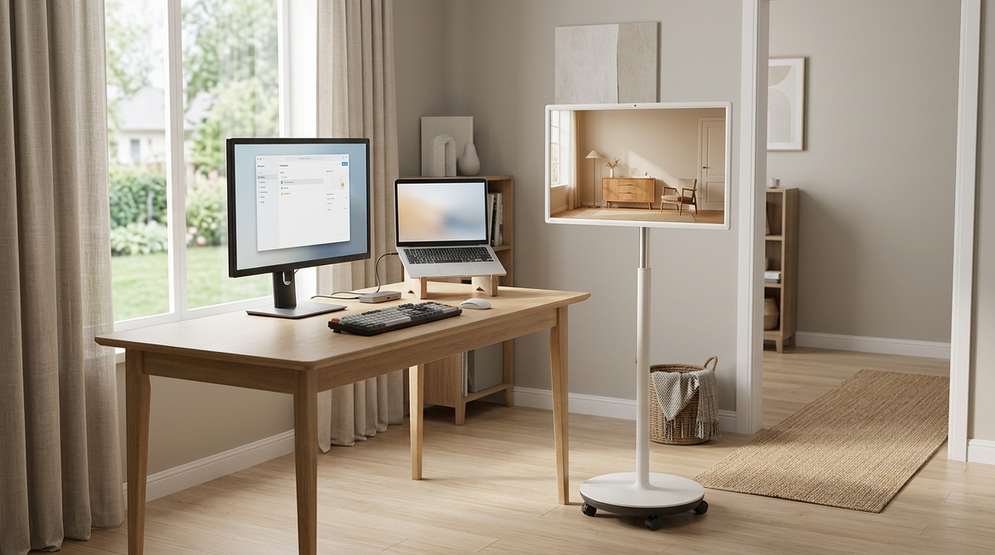
Portable smart display alternatives come down to three very different jobs: a rolling smart display for room-to-room use, a tablet for app-first portability, or a portable monitor for the lightest display-only setup. The right choice depends on whether you want standalone apps, a bigger shared screen, or the lowest hardware footprint.

Three Display Types, Three Trade-Offs
If you are comparing portable smart display alternatives, start with the category, not the spec sheet. A rolling smart display is built to move through the house with its own OS, touch control, speakers, and battery. A tablet is the most familiar app-first option, but it usually needs a stand and extra charging help to act like a shared screen. A portable monitor is the simplest panel, but it depends on another device for apps and usually for the full experience.
For most shoppers, the decision is not about which one is objectively "best." It is about which setup creates the least friction in the rooms you actually use.
A rolling smart display is the strongest fit when the screen needs to serve several people, move often, and stay usable without a laptop nearby. A tablet is better when travel, app familiarity, and grab-and-go convenience matter more than screen size. A portable monitor is the right pick when your laptop or console still does the heavy lifting and you only need extra screen space.
Battery and Mobility in Real Use
Battery and mobility are where the comparison gets practical fast. A rated runtime is only a starting point, because brighter settings, streaming, louder audio, and heavier Wi-Fi use usually shorten real-world time on battery. That matters more on a rolling display than on a desk monitor, because the whole point is to move it without constantly thinking about the charger.
| Device Type | Battery Dependence | Setup Friction | Cable Count | Best Mobility Scenario |
|---|---|---|---|---|
| Rolling smart display | Built in, but runtime varies with brightness and workload | Low to moderate | Low when used wirelessly | Kitchen, living room, and office rotation |
| Tablet | Built in, but smaller battery life can feel tighter during shared use | Moderate, especially with stand or dock | Low to moderate | Carrying from room to room or traveling |
| Portable monitor | Usually depends on an external device for power and content | Moderate to high | Moderate to high | Laptop or console second screen |
In real use, tablets often surprise buyers because the panel is portable but the setup is not always simple. Once you add a stand, charging cable, and maybe a keyboard or dock, the "easy" option starts to feel less flexible. Portable monitors have the opposite problem: they are easy to carry, but they usually still need a source device to feel complete.
A rolling smart display tends to win when you want to move from kitchen counter to living room to workspace with the fewest reset steps. That is especially true for households that share one screen for recipes, calls, and casual viewing.
Apps, OS, and Standalone Use
The built-in software layer is the main divider in portable smart display alternatives. A smart display earns its keep when the operating system actually supports the apps you use without a connected computer. Portable monitors do not offer that on their own, so they work best when display quality matters more than standalone software.
Google EDLA is useful as a compatibility check because it points to access to Google services and the Play Store on certified large-format Android displays (source). It is not a promise that every app will behave perfectly, but it does tell you the device is closer to a tablet-like software experience than an OS-free monitor. EDLA-certified devices also receive Play Protect security and automatic updates (source).
For buyers who want the most self-contained setup, this is the point where the decision usually flips. If you need streaming apps, touch interaction, and a simple room-to-room workflow, a rolling smart display is usually a better fit than a portable monitor. If you mainly mirror a laptop or console and just want a bigger surface, the monitor stays attractive.
Why Your Laptop Battery Drains Faster When Using a Portable Monitor is a useful follow-up if your setup will stay laptop-centered, because the power trade-off becomes part of the buying decision.
Where a Rolling Display Fits Best
A rolling display is most compelling when the same screen has to do different jobs in different rooms. It works well for kitchen tutorials in the morning, a video call in the afternoon, and streaming in the evening, especially when you do not want to keep reconnecting cables or dragging out a laptop stand.
The KTC MEGAPAD 32" 4K Android 13 Google EDLA Smart Touch Monitor with 9500mAh Battery fits that scenario more naturally than a tablet-plus-stand setup, because it combines a 32-inch screen, touch input, Android apps, Wi-Fi 6, Bluetooth 5.2, built-in speakers, wheels, and a battery into one mobile package. The brand claims up to 11 hours of runtime, but that should be treated as a starting point because brightness and workload can reduce it.
That kind of setup is less compelling if you mostly travel, work from cafés, or need the smallest possible device. In those cases, a tablet or a lightweight portable monitor is usually easier to carry and store. If the screen stays in one room most of the time, a fixed monitor may still be the cleaner choice.
Ditching the Wall Mount: Why Rolling Smart Monitors Are the New TV Alternative is a helpful companion read if your main question is whether a rolling display can replace a wall-mounted screen in a shared space.

Size, Screen Quality, and Ergonomics
Size changes the decision more than many shoppers expect. Larger screens are easier to share, easier to read from across a room, and better for recipes, workouts, and casual viewing. The trade-off is that they are heavier, need more stable support, and become less convenient the moment you want to carry them by hand.
Tablets are the most portable screens in this comparison, but they can feel small fast when more than one person is looking at them. That matters in the kitchen, during family streaming, or when you want to glance at a call from across the room. Portable monitors are more flexible than they look on paper, but they often feel like a personal second screen instead of a communal display.
The practical question is simple: if the screen moves daily, size has to be balanced against setup ease. If it stays in one room, you can usually prioritize comfort and viewing area more aggressively.
Quick Decision Guide for Shoppers
- Check whether you need standalone apps or whether the screen will mostly mirror another device. If you need apps without a laptop nearby, portable smart display alternatives with Android and EDLA support are the safer category.
- Check whether your use depends on battery at higher brightness. Runtime claims are useful, but they are not fixed numbers because streaming, Wi-Fi, audio, and brightness all affect them.
- Check whether you need speakers, touch, and wireless connectivity built in. If those are already handled by your source device, a portable monitor may be enough.
- Check whether the screen moves daily between rooms or stays near a desk. Frequent movement usually favors a rolling display; occasional carry use often favors a tablet.
- Check the return window and warranty after the fit looks right, not before. A good policy cannot fix the wrong category.
If you want to browse the mobile category directly, start with the Mobile Touch Screen collection. If you are comparing non-mobile screens against the same use case, the broader Smart Monitor collection is a useful reference point.
Related Resources
Rolling smart displays often serve as the hub for both daily tasks and entertainment. The following resources explore specific workflows:
- MegPad for 2026 Smart Kitchens: The Ultimate Rolling Recipe and Meal Prep Hub
- Cloud-First Gaming Rooms: Building a Console-Free Setup Around a Smart Display
- Browser-Based Cloud Gaming on Smart Displays: Input, Codec, and Fullscreen Tips
- KTC MEGAPAD 27" FHD Android 14 Google EDLA Smart Touch Monitor with 9500mAh Battery
- KTC 32" 4K 60Hz Smart Monitor with Google TV in Netflix Audio Licensed
FAQs
Q1. How Does Brightness Affect Battery Runtime on a Mobile Smart Display?
Higher brightness usually shortens runtime, and streaming plus louder audio can reduce it further. Treat any published battery figure as a best-case starting point. If you plan to use the screen in a bright kitchen or with video apps, verify runtime at those settings before buying.
Q2. What Makes a Portable Monitor Less Useful Without a Laptop?
Portable monitors usually do not include a full operating system or app layer. That means the source device has to provide the apps, content, and often much of the power path. They are best when the laptop remains the center of the setup.
Q3. Can a Tablet Replace a Rolling Smart Display in a Shared Room?
It can for personal use, but shared-room use usually adds friction. A tablet often needs a stand or dock, and the smaller screen can feel cramped for recipes, workouts, or casual group viewing. A rolling display is usually easier when multiple people need to see it.
Q4. What Runtime Should I Expect From a 9500mAh Battery?
There is no single number that fits every setup. Brightness, Wi-Fi use, app load, and audio level all matter. For planning, expect lighter use to last noticeably longer than streaming at higher brightness, and do not plan around the headline runtime alone.
Q5. Why Does Google EDLA Matter for App Selection?
EDLA usually means better access to Google services and the Play Store on certified large-format Android displays. That helps with app availability, but you still need to confirm the exact apps you rely on. Certification improves the starting point, not every app outcome.
The Fastest Way to Narrow the Choice
If you want the simplest decision, start with your real use pattern. Choose a rolling smart display when room-to-room mobility and standalone apps matter most, choose a tablet when travel and familiarity matter most, and choose a portable monitor when your laptop stays central. If the device has to move daily, share easily, and work without constant setup, the category choice matters more than the brand name. Review the return policy for any model before final purchase.