A rolling smart display for libraries and makerspaces should solve two problems at once: it needs to move cleanly between rooms, and it needs to handle shared apps or presentations without turning every session into setup work. For most buyers, the real decision is whether you need on-device app access, simple casting, or both, and whether the stand can handle frequent repositioning without becoming awkward to park.

What Libraries and Makerspaces Need From a Rolling Display
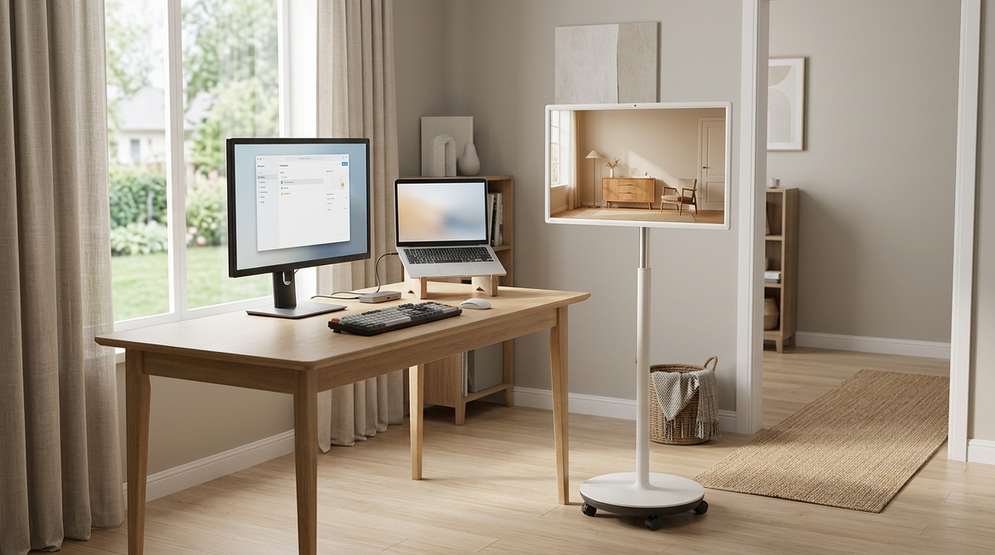
A rolling smart display for libraries and makerspaces is less about a classroom-style feature list and more about shared-space workflow. Staff may roll it into a program room for a workshop, park it beside a makerspace station for a demo, and then move it again for tutoring or an event. That means mobility, quick setup, and session reset matter as much as screen size.
The best fit is usually the unit that reduces handoffs between groups. If staff need a screen that can be moved, signed into, and reused without a lot of reconfiguration, a mobile smart display makes more sense than a fixed install. If the screen stays in one room most of the time, a fixed display may be simpler and easier to cable.
For browsing mobile category options, the mobile touch screen collection is the closest starting point. In libraries and makerspaces, that category only helps if the actual workflow still works: who signs in, who clears the app state, and how quickly the unit can be moved back into service.
Mobility, Stability, and Room-To-Room Handling
Makerspace planning favors reconfigurable equipment that can move between fabrication zones and demo areas, which is why ISTE's flexible learning environments guidance is a useful framing point even outside a classroom. In practice, mobility is not just "has wheels." It is the mix of rolling ease, parking stability, cable cleanup, and how much staff effort is needed each time the display changes rooms.
A stable base matters because a shared display gets touched, paused, and re-angled often. If the screen wobbles while people tap it, the unit may feel less trustworthy even if the panel itself is fine. Look at the stand and wheel setup together, not as separate specs.
When room-to-room movement is frequent, a clear path matters more than a marketing claim about portability. The CPSC tip-over prevention guidance is aimed at consumer furniture and televisions, but the practical takeaway still applies here: keep the route clear and move the display at its lowest stable position when possible.
For most shared spaces, that means checking four things first:
- Can staff roll it through the actual hallway and doorway widths in your building?
- Does it stay steady when people interact with the screen?
- Is there a clean parking spot with power nearby?
- Can cable slack be managed without creating a trip or snare point?
If a display only looks mobile in a catalog photo but takes effort to park, power, or re-aim, it may slow down daily use. In that case, a fixed screen or a lighter mobile unit can be the better operational choice.

App Sharing and Collaboration Setup
For shared student collaboration, Google EDLA certification is the strongest signal that the display can access Google Play and Google Mobile Services natively. That matters when the display itself needs to run apps, sign into services, or support a repeatable shared-session workflow. It is different from just projecting from a laptop.
That distinction is the main compatibility filter. EDLA supports on-device app access. Casting and HDMI support presentation from another device. They are useful, but they do not prove that every app is supported on the display itself.
In a library or makerspace, this difference changes the purchase decision. If staff want the display to host apps directly, EDLA is the first thing to verify. If the display will mostly mirror a laptop or tablet during a program, casting and HDMI may be enough, but the result will depend on the source device, app, and network.
A simple rule helps here:
- Use EDLA language when the display itself must run the app.
- Use casting or HDMI language when another device is doing the work.
- Build a reset habit for shared sessions so the next group starts clean.
That reset habit matters in public or semi-public spaces. If a screen stays signed in or left in the middle of a cast session, the next group inherits friction. For that reason, the rolling smart display for libraries and makerspaces should be judged as a shared institutional tool, not as a casual home entertainment screen.
Durability Checks for Shared Education Spaces
Durability in a shared-space display is mostly about wear points, not a blanket promise of abuse resistance. Before buying, staff should ask what happens when the display is moved often, cleaned often, and used by different groups in one day.
Use this practical checklist:
- Check how the stand feels when the screen is parked and touched.
- Confirm what the cleaning routine should be for the screen and frame.
- Verify the warranty and service path before purchase.
- Ask who handles updates, sign-ins, and app maintenance.
- Make sure the power and charging setup is realistic for the room.
The selected MEGAPAD models both include a 12-month product warranty and a 30-day returns policy, which helps with procurement confidence, but it does not remove the need to check the building workflow. A display can still be a poor fit if it is hard to move, hard to reset, or awkward to power in the room where it will actually live.
Which MEGAPAD Fits Your Space
For a library or makerspace buyer, the two relevant options are the KTC MEGAPAD 32" 4K Android 13 Google EDLA Smart Touch Monitor with 9500mAh Battery and the KTC MEGAPAD 32" 4K Android 14 Google EDLA Smart Touch Monitor with 8550mAh Battery. Both are rolling smart display options with EDLA-based app access, but they solve the workflow a little differently.
| Model | Shared-space fit | Strongest use case | Buyer notes |
|---|---|---|---|
| KTC MEGAPAD 32" 4K Android 13 Google EDLA Smart Touch Monitor with 9500mAh Battery | Better when staff value wheel-led mobility and a simple room-to-room roll-in workflow | Library program rooms, roaming workshop support, and sessions that move often | Built-in wheels and a 9500mAh battery make it the more movement-oriented option; it also lists Android 13, Wi-Fi 6, Bluetooth 5.2, HDMI 2.0, USB ports, a 12-month warranty, and 30-day returns. |
| KTC MEGAPAD 32" 4K Android 14 Google EDLA Smart Touch Monitor with 8550mAh Battery | Better when the room benefits more from adjustable height and angle than from a wheel-first design | Makerspace demo zones, fixed collaboration corners, and setups that need repeatable positioning | Adjustable height, tilt, and rotate make it easier to tune for a parked workflow; it lists Android 14, a Type-C port, HDMI 2.0, USB 3.0, Wi-Fi 6, Bluetooth 5.2, a 12-month warranty, and 30-day returns. |
The decision usually flips on movement versus positioning. If the display will be rolled often between rooms, the wheel-led unit is the more direct fit. If the screen will move less often but needs more fine-tuned placement once it is parked, the adjustable-height Android 14 model is the safer fit.
For a library director, that means asking how often the display will be pushed into service each week. For a makerspace manager, it means asking whether the screen lives mostly in one zone or rotates across several. If the answer is "frequently moved," prioritize the 32-inch Android 13 unit. If the answer is "mostly parked, but re-aimed a lot," the Android 14 unit is easier to live with.
Buyer Checklist for a Shared-Space Purchase
Before you order a rolling smart display for a library or makerspace, confirm five things:
- App access: Do you need apps on the screen itself, or only casting and HDMI from other devices?
- Movement path: Can the unit move through your real hallways, doors, and storage spots without constant disassembly?
- Parking workflow: Is there a clean place to park it with power nearby and no messy cable route?
- Session reset: Can staff clear the screen, sign out, or restart the session between groups without confusion?
- Support path: Do the warranty, returns, and service contact fit your procurement process?
If those checks line up, a rolling smart display for libraries and makerspaces can be a good shared-space tool. If they do not, the better answer may be a fixed display or a smaller mobile screen. The point is not to buy the most flexible option on paper, but the one that will still feel easy after the tenth move of the week.
Frequently Asked Questions
How Is a Rolling Smart Display Different From a Fixed Display in a Library or Makerspace?
A rolling unit makes sense when rooms change often, staff need quick setup, or the same display supports multiple sessions in different spaces. A fixed display usually wins when the room layout stays stable and the screen rarely moves. The deciding factor is how much relocation friction you can tolerate.
What Screen Size Works Best for Library Programs and Makerspace Demos?
For shared rooms, size should match both viewing distance and how many people gather around the screen. A 32-inch display is often easier to park in tighter spaces than a larger unit, while still giving a useful collaboration surface. If the room is small, check turning and storage clearance first.
Can a Shared Rolling Display Handle Student App Sharing and Casting?
It can, but only if the workflow is set up correctly. EDLA supports on-device app access, while casting and HDMI are presentation methods from another device. If you need the screen itself to run the app, verify EDLA and the app list before buying.
Why Does Battery Life Matter in a Room-To-Room Education Setup?
Battery support reduces outlet hunting and makes a quick move between rooms less disruptive. Runtime still changes with brightness, wireless use, audio, and how long the screen stays on. For a shared-space buyer, battery is useful when it lowers setup friction, not because it removes every power concern.
What Should Staff Check Before Moving a Smart Display Between Rooms Every Day?
Check the movement path, the parking spot, the cable route, and the session reset routine. If the display is going to be moved daily, the stand and wheel setup should feel easy to control, not just easy to describe in a spec sheet. Warranty and support contact should also be clear before rollout.
Final Takeaway
A rolling smart display for libraries and makerspaces works best when it matches the actual workflow, not just the wishlist. If your team needs frequent moves and simple room-to-room handoffs, the wheel-led 32-inch Android 13 MEGAPAD is the more direct fit. If your main need is a parked screen with better adjustment, the Android 14 model is the better check-before-buying option. Review the path, app access, and support plan before you choose.