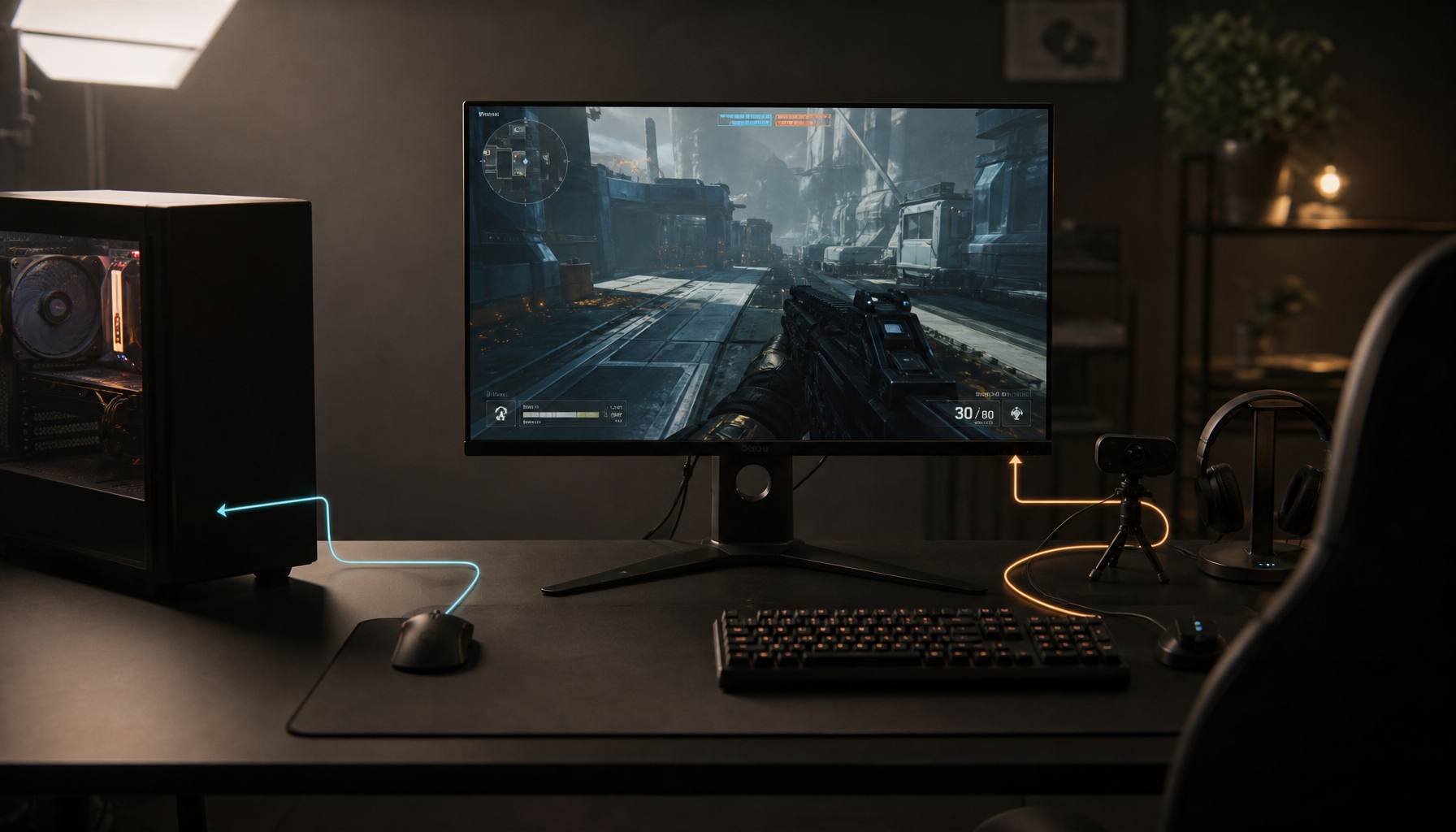
Monitor fan noise can break focus, flatten immersion, and make a premium display feel less polished. The fix starts with understanding whether the fan is cooling a high-performance panel as intended or reacting to heat, dust, airflow, or room acoustics.
Why Some Monitors Get Loud
Most everyday office displays are fanless, but high-end gaming, OLED, mini-LED, and professional HDR monitors may use active cooling to manage heat. More brightness, higher refresh rates, dense backlighting, and powerful internal electronics can all raise the thermal load.
That does not make noise acceptable. A quiet room turns a small whirr into a constant distraction, especially during document work, video calls, or late-night gaming when speakers are low.
The same logic applies to PCs: loud fans often rise with heavy CPU or GPU work, blocked vents, dust, or poor airflow. A monitor fan can behave similarly when heat cannot escape cleanly.
The Immersion Cost
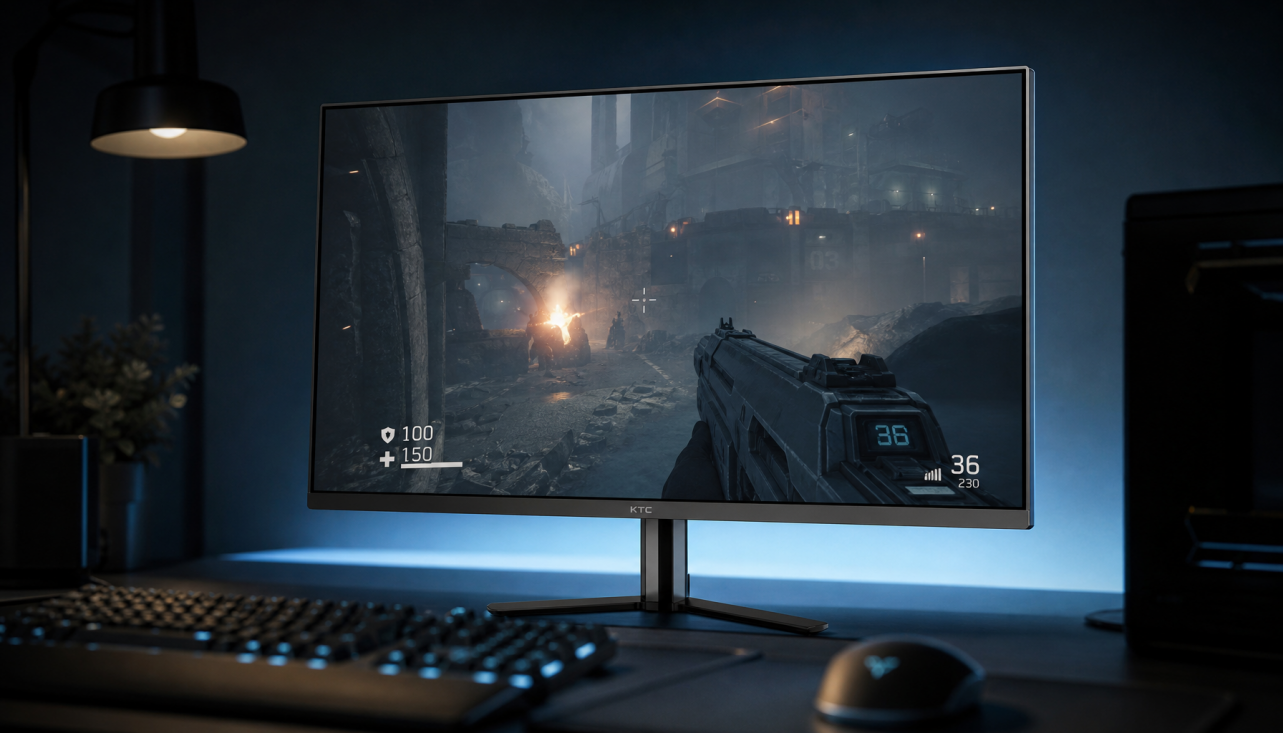
For competitive play, a noisy display can pull attention away from sound cues, timing, and target tracking. That matters when modern esports panels push extreme refresh rates; top gaming monitors now advertise 240Hz, 360Hz, 480Hz, and even higher-class performance, with OLED praised for near-instant response and contrast in top gaming monitors.
For work, the damage is slower but just as real. A faint mechanical tone can make spreadsheets, writing, design reviews, or coding feel more fatiguing over a full day.

Noise also changes how you use the monitor. You may lower brightness, avoid HDR, move the screen farther away, or stop using performance modes you paid for.
Quick Checks Before You Blame the Display
Start with the simple variables. A display working hard in a tight desk corner may sound worse than the same display with a few inches of open space behind it.
Try these steps:
- Move the monitor away from walls, shelves, and heat sources.
- Lower HDR brightness or switch out of peak-performance picture modes.
- Check whether the noise appears only after long gaming or editing sessions.
- Clean nearby dust without forcing air directly into delicate vents.
- Test a quieter power mode or refresh-rate setting if available.

If the fan rattles, buzzes, grinds, or changes pitch sharply, treat it as a potential hardware issue. Smooth airflow noise is different from mechanical failure.
Tuning the Room Around the Screen
Sometimes the monitor is not extremely loud; the room is just acoustically hard. Bare walls, glass desks, wood floors, and minimal furniture reflect small noises back at you.
Acoustic design separates two ideas: blocking sound and absorbing reflections. Sound absorption uses soft materials like rugs, curtains, fabric panels, and porous surfaces to reduce echo inside the room, while sound absorption does not fully stop sound from traveling through walls.
For a home setup, practical fixes often work best. Add a rug under the desk area, use curtains behind or beside the display, place fabric panels on the wall behind the monitor, move a bookshelf or soft storage near a reflective side wall, or use desk-mounted acoustic panels if calls and focus work matter.

Office acoustic screens can reduce how far sound travels across a workspace, and some makers claim strong reductions depending on materials and placement through acoustic office screens.
Buying Smarter Next Time
If silence matters, check reviews for fan behavior, not just refresh rate, response time, HDR brightness, and port specs. A monitor can be technically elite and still be a poor match for a quiet apartment office.
Value-oriented buyers should prioritize the whole experience: panel performance, thermal design, warranty support, return policy, and real desk conditions. For many users, a quieter 1440p high-refresh display may feel better every day than a louder flagship panel that only shines in short HDR gaming sessions.
Some active cooling is normal on ambitious displays, but constant or intrusive fan noise should be treated as a usability flaw, not a personality trait of “pro” gear.