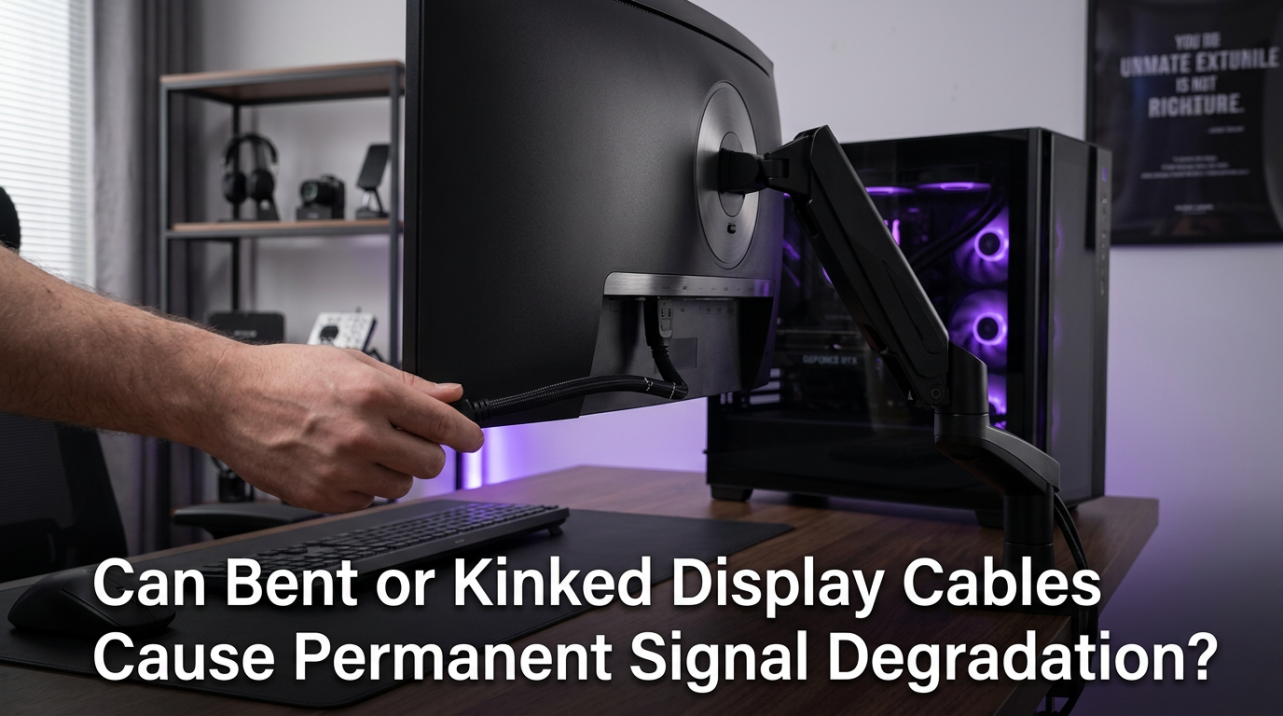
A multi-monitor setup can expand your workspace, but it also increases what your eyes, neck, and attention must manage. The problem is rarely too many screens alone; it is usually poor alignment, mismatched visuals, glare, and a workflow that keeps pulling you sideways.
More Screen Space Can Create More Body Load
Two or three displays look powerful because everything is visible. But if your main work is not centered, every email check, code preview, chat reply, or dashboard glance becomes a small neck rotation repeated hundreds of times.
For comfort, your primary monitor should sit directly in front of your keyboard, with the top or main viewing area at eye level or slightly below and about an arm’s length away, a setup echoed in home office ergonomics. Secondary screens should angle inward instead of sitting flat like a wall of glass.

A quick rule: if one screen gets 80% of your focus, it deserves the center position. If two screens are used equally, place their inner edges near the centerline and curve them slightly around you.
Visual Mismatch Makes Your Brain Work Harder
A setup can be technically impressive and still feel rough if the displays do not match. Different sizes, resolutions, scaling levels, refresh rates, brightness, and color temperatures force your eyes to keep readjusting.

That fatigue can show up as squinting, leaning forward, dry eyes, or the feeling that browsing a few tabs should not be this tiring. Matching monitors are not just an aesthetic upgrade; they reduce visual friction.
If you mix displays, make the experience more consistent:
- Match scaling so text appears similar in size.
- Align top edges, not just bottom edges.
- Keep brightness close across screens.
- Use the sharpest display for primary work.
- Put lower-quality panels on reference duty.
This is also where portable smart screens need discipline. A lightweight second display is useful for travel, but if it sits too low beside a laptop, it can recreate the same neck and eye strain in a smaller footprint.
Glare and Brightness Are the Hidden Performance Killers
Many users blame blue light first, but the faster fatigue trigger is often contrast imbalance: a bright screen in a dark room, a glossy panel facing a window, or a monitor set to showroom brightness.
Glare can increase eye strain and nudge you into awkward postures as you unconsciously tilt your head to read. A practical fix is to position displays at a right angle to windows and adjust blinds or curtains; checking reflections with the screen turned off can also reveal problem spots.

Your monitor should feel like part of the room, not a spotlight. In a dim home office, lower brightness. In a bright daytime workspace, raise it enough to keep whites readable without harshness. For gaming monitors, do not let HDR punch, saturated color modes, or ultra-bright presets become your daily office baseline.
Productivity Drops When Every Screen Demands Attention
A multi-monitor layout should support priority, not invite constant scanning. If email, chat, analytics, music, and browser tabs all stay visible, your eyes keep checking for change even when nothing matters.
The better setup assigns each display a role. Use the center screen for creation or gameplay, a side screen for reference, and a far-side or vertical screen for communication, logs, documents, or reading.

For three monitors, keep the main display centered and angle side screens inward to reduce repetitive neck movement. For an ultrawide, increase viewing distance slightly so the far left and right edges do not require excessive head turns.
More displays can improve productivity, but only when the physical layout and window habits reduce switching without increasing scanning.
The Fix: Tune the System, Not Just the Stand
Start with the body, then tune the pixels. Sit back with feet supported, elbows near 90 degrees, shoulders relaxed, and the keyboard and mouse close. Then bring the screens to you.
A reliable baseline is simple: primary monitor centered, top edge near eye level, display at least 20 inches away, and no farther than about 40 inches for comfortable reading, consistent with office ergonomics. If text feels small at that distance, increase scaling instead of leaning forward.
Finally, build recovery into the setup. Every 20 minutes, look about 20 ft away for 20 seconds. Every 30 to 40 minutes, stand, stretch, or walk briefly. The best display setup does not just show more; it lets you work longer with less friction.