A 1ms GTG spec describes how fast pixels can switch between certain gray levels, not how long each frame stays visible to your eyes. In gameplay, motion blur also depends on refresh rate, frame rate, overdrive tuning, panel behavior, and blur-reduction strobing.
1ms GTG Measures Pixel Transition, Not Motion Clarity
GTG means gray-to-gray response time: the time a pixel takes to change from one shade to another. That matters because slow transitions can create ghosting, smearing, or trails behind moving objects.
The spec is often a best-case number. A monitor may hit 1ms in a narrow test condition while taking longer on darker transitions, color changes, or less aggressive overdrive settings. That is why two “1ms” monitors can look very different in a fast shooter match.

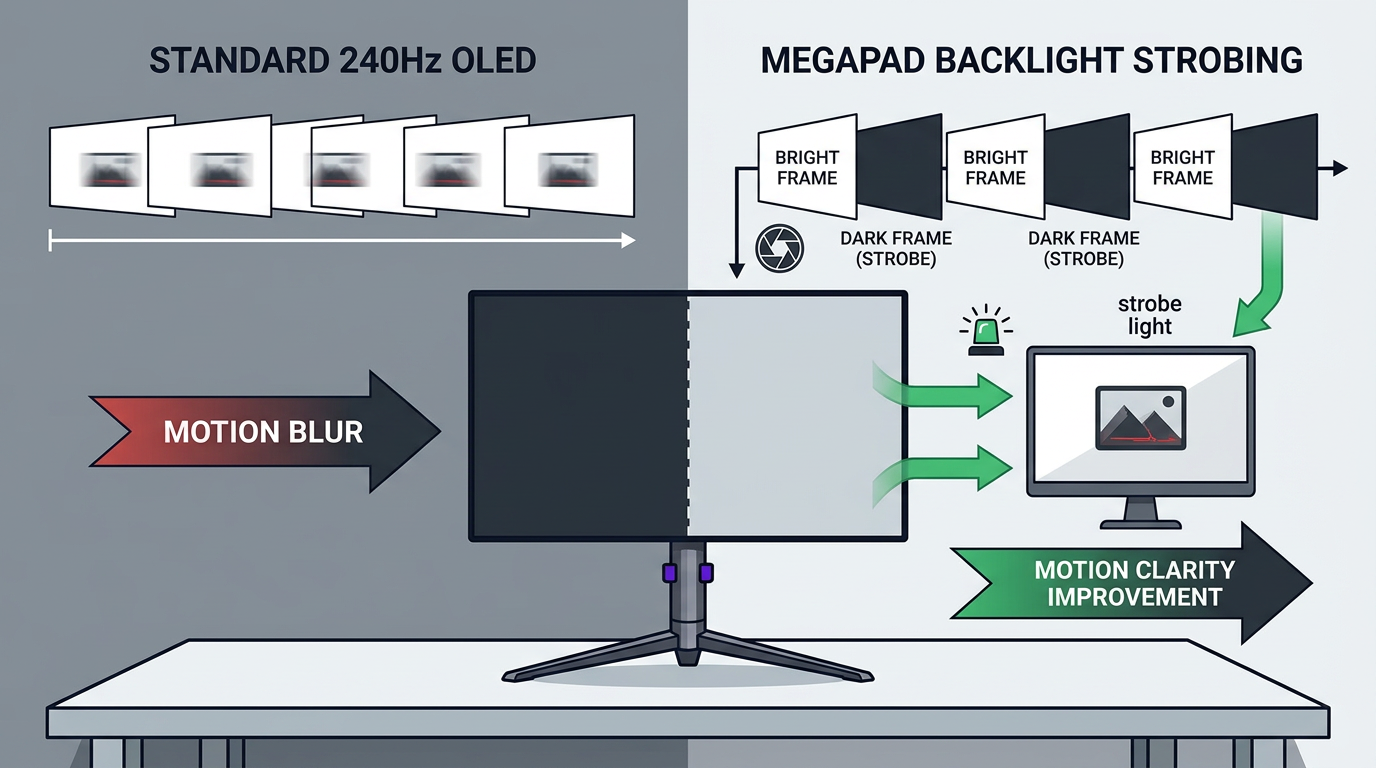
Even extremely fast pixel response does not erase all blur, because sample-and-hold persistence blur remains tied to how long each frame is held on screen.
Refresh Rate Sets the Blur Floor
At 144Hz, each frame remains visible for about 6.94ms. At 240Hz, that drops to about 4.17ms. Even if a pixel transition takes only 1ms, your eyes may still track a frame that is being held for several milliseconds.
That held-frame behavior is a major reason motion can look smeared during a fast pan, even when ghosting is low. Higher refresh rates reduce that persistence window, which is why 240Hz gaming can look clearer than 144Hz when your system can feed it enough frames.

The quick math is simple: 240Hz gives you roughly 2.77ms less frame persistence than 144Hz. For competitive tracking, that can matter more than shaving a response-time claim from 1ms to 0.5ms.
Overdrive Can Help or Hurt
Most LCD gaming monitors use overdrive to push pixels faster. The right setting can reduce trailing; the wrong setting can create overshoot, where moving edges show bright halos or inverse ghosting.

That is why “fastest” is not always the cleanest mode. Many displays look better on a balanced overdrive preset than on the extreme setting advertised for spec-sheet speed.
For a practical setup, use this quick check:
- Set the monitor to its highest supported refresh rate.
- Enable VRR if frame rates fluctuate.
- Use Normal or Fast overdrive before trying Extreme.
- Turn off in-game cinematic motion blur.
- Test motion in the games you actually play.
Variable refresh rate can also smooth tearing and uneven frame pacing, but frame-rate matching will not fix pixel smear or persistence blur by itself.
What to Look For Instead of Just 1ms
A stronger motion-clarity spec sheet starts with the whole chain: refresh rate, real response behavior, overshoot control, input lag, VRR range, and blur-reduction features. For esports, a well-tuned 240Hz or 360Hz panel usually beats a weaker 144Hz display with the same 1ms badge.

Resolution also affects clarity indirectly. A 4K monitor can look sharper when still, but if your GPU cannot hold high frame rates, motion may feel less crisp than a lower-resolution screen running faster. For many players, 1440p is the value sweet spot because it balances detail and frame rate; higher resolution demands more GPU power.
Blur-reduction strobing can make motion dramatically clearer, but it may lower brightness, add flicker, or conflict with VRR, so it is not automatically the best mode for every game.
The smart buy is not “1ms or nothing.” It is a display that stays clean at your target refresh rate, uses overdrive without ugly artifacts, and matches the frame rate your system can sustain.