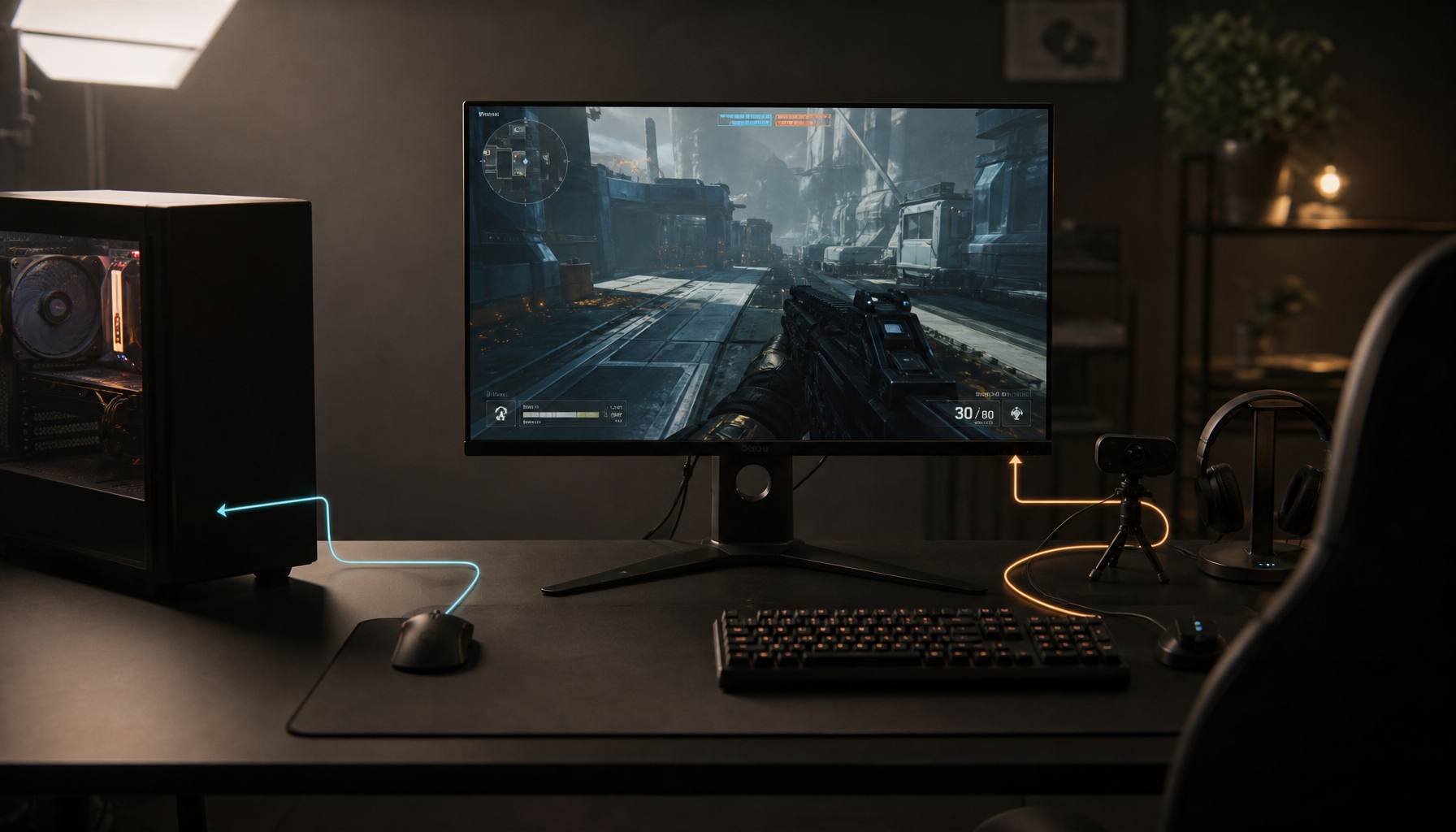
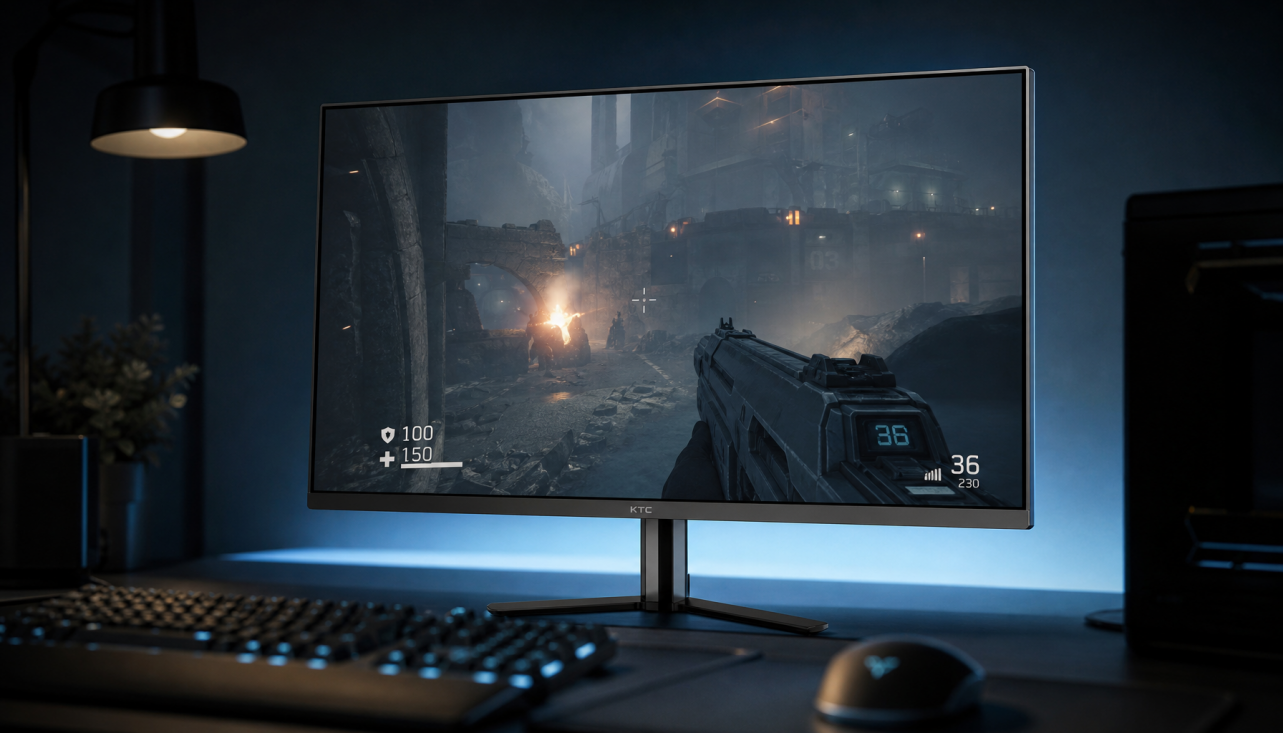
USB-C can turn a tablet or cell phone into a capable display connection, but only when the port, cable, adapter, and monitor all support video output. The connector shape alone does not guarantee screen mirroring, desktop mode, charging, 4K, high refresh rates, or monitor input.
Plugged your tablet into a portable monitor and got nothing but a blank screen? In real setups, the fastest fix is usually not another random cable; it is confirming whether the device supports video over USB-C, then matching the adapter and display input correctly. Here is how to know what will work before you spend money, travel with the wrong gear, or blame a monitor that is doing exactly what it was built to do.
Why USB-C Display Connections Feel So Inconsistent
USB-C is powerful because one slim reversible connector can handle charging, data, audio, video, hubs, and docks. It is also confusing because USB-C is a connector, not a promise that every feature is present. Two ports can look identical while one supports only charging and basic data, and the other supports DisplayPort Alt Mode, Power Delivery, and high-speed data.
For tablets and cell phones, the key phrase is DisplayPort Alt Mode, often shortened to DP Alt Mode. This lets a compatible USB-C port send a real display signal to a monitor through USB-C, USB-C to HDMI, or USB-C to DisplayPort hardware. If the phone or tablet does not support that video mode, a passive USB-C cable will not create a monitor signal.
The practical example is simple: a USB-C phone connected directly to a USB-C portable monitor may mirror instantly if the phone supports DP Alt Mode. A budget phone with the same oval port may only charge the monitor or do nothing at all. That is not a monitor failure; it is a capability mismatch.
What Works: Direct USB-C to USB-C
The cleanest setup is USB-C from the tablet or cell phone to a USB-C monitor, especially a portable smart screen. When the device supports video output and the monitor accepts USB-C display input, this can carry video and sometimes power through one cable. For mobile work, that means fewer adapters, less desk clutter, and faster setup in a hotel room, gaming corner, meeting room, or compact office.

A portable monitor connection works best when the phone or tablet supports DisplayPort Alt Mode and the monitor’s USB-C port is designed for display input. Smartphone-to-monitor advice consistently points to DisplayPort Alt Mode as the deciding feature for direct wired video. On supported devices, this may unlock a desktop-style interface; on supported tablets, it may create a larger mirrored or extended workspace depending on the operating system.
The main advantage is latency. For gaming, touch demonstrations, spreadsheets, video review, and presentation control, wired USB-C is more responsive than wireless casting. The downside is compatibility: the cable must support video, the device must output video, and the display must accept it. A charging-only USB-C cable can ruin an otherwise correct setup.
What Works: USB-C to HDMI
USB-C to HDMI is often the best bridge when your monitor, TV, capture device, or projector has HDMI instead of USB-C. The connection usually uses either a USB-C to HDMI adapter plus a standard HDMI cable, or a direct USB-C to HDMI cable. For phones and tablets, the same rule applies: the connected device still needs video output support through USB-C.

For 4K productivity or console-like mobile gaming, adapter specs matter. HDMI 2.0 is commonly recommended for 4K at 60Hz, while lower-end adapters may limit you to 1080p or 4K at 30Hz. Advice on USB-C to HDMI also flags HDCP support as important when protected streaming content fails to appear, because the device, adapter, cable, and display may all need compatible content-protection support.
A real-world buying rule is to match the adapter to the monitor’s actual job. If you are presenting slides at 1080p, a basic reliable adapter may be fine. If you are gaming on a high-refresh portable display, editing video, or watching protected 4K content, buy for the resolution, refresh rate, and HDCP support you actually need.
Setup |
Best For |
Main Risk |
Portable monitors, clean desks, tablet productivity |
Device or cable lacks video support |
|
USB-C to HDMI |
TVs, projectors, office monitors |
Adapter limits resolution or refresh rate |
USB-C hub with HDMI |
Workstations, travel kits, peripherals |
Power or bandwidth limits |
Wireless casting |
Casual viewing, quick sharing |
Latency, compression, wireless instability |
What Works: USB-C Hubs and Docks
A hub or dock can turn one USB-C port into HDMI, DisplayPort, USB-A, Ethernet, card readers, and charging. This is excellent for tablet productivity if you want a keyboard, mouse, external storage, and monitor from one connection. It is also where many failures begin, because every part of the chain shares bandwidth and power.
A hub that does not detect a monitor is often dealing with a basic constraint: the host USB-C port may not support DisplayPort Alt Mode, the hub may need external power, or the HDMI cable and monitor input may be wrong. Troubleshooting advice for a USB-C hub centers on checking video support first, then reconnecting the hub, display cable, and monitor power in a clean sequence.
For a travel setup, a powered hub is better when the phone or tablet is expected to run a monitor and peripherals for more than a quick demo. A tablet driving a 15-inch portable screen, keyboard receiver, flash drive, and charging pass-through is asking much more from USB-C than a simple screen mirror. If the display flickers or drops out under load, reduce the connected accessories or use a dock with better power delivery.
What Doesn’t Work: Assuming Every USB-C Port Outputs Video
The most expensive mistake is assuming that USB-C means monitor-ready. Many phones, tablets, and entry-level devices use USB-C for charging and data only. If the manufacturer does not list DP Alt Mode, HDMI Alt Mode, Thunderbolt, USB4 display support, or external display output, treat monitor support as unconfirmed.
Compatibility lists can help, but exact model numbers matter. Portable monitor makers note that USB-C screen mirroring is common on many flagship phones, tablets, gaming phones, and premium models, while many other devices still lack wired video output. A product family name is not enough; storage variants, regional models, and budget editions may differ.
A quick field test is better than optimism. Connect the device to a known-good USB-C monitor with a known-good video-capable cable. If nothing appears, check display settings, notifications, or desktop mode prompts. If there is still no signal, the port may simply not support video.
What Doesn’t Work: Using a Tablet as a Wired Monitor Input
A tablet with USB-C display output is usually a video sender, not a monitor. That means it can drive an external display, but it usually cannot accept video from a mini PC, game console, camera, or another phone through its USB-C port.
This distinction matters for portable gaming and compact desktop builds. A “full-function USB-C” tablet port may support charging, data, and video output, but video input is a different hardware role. Most consumer tablets do not expose the internal screen as a passive HDMI, DisplayPort, or USB-C monitor.
If you need to use a tablet as a display for another device, your practical choices are remote desktop, game streaming, wireless casting, or a USB HDMI capture device. Those can work, but they are not the same as a true monitor. Expect added latency, possible compression, app dependency, and resolution limits. For reflex-based gaming or BIOS-level setup work on a mini PC, buy a real portable monitor.
What to Check Before Buying a Cable, Adapter, or Monitor
Start with the connected device. Look up the exact tablet or phone model and search its official specifications for external display, DisplayPort Alt Mode, DP Alt Mode, Thunderbolt, USB4, HDMI Alt Mode, MHL, or desktop mode. If the specs only mention charging, USB 2.0, or data transfer, do not assume video.
Then check the display side. A USB-C monitor should clearly state that its USB-C port accepts video, not just service, charging, or firmware functions. A good USB-C monitor can reduce cable clutter by carrying display, data, and power through one connection, and USB-C monitors are especially useful when you want a cleaner desk for laptops, tablets, or compatible phones.
Finally, check the cable and adapter. For 4K at 60Hz, high refresh gaming, HDR, or pass-through charging, vague product listings are not enough. Look for stated resolution, refresh rate, Power Delivery wattage, DP Alt Mode support, HDMI version, and compatibility with phones or tablets. A $10 cable that only charges is not a value buy if it costs you a failed presentation.
Troubleshooting a Blank Screen
When a tablet or cell phone does not show up on a monitor, start with the simple physical path. Reseat both ends of the cable, select the correct monitor input, remove extra hubs, and test a direct connection if possible. Try another known-good video cable or adapter before concluding the device is incompatible.

Next, check the device behavior. Some devices show a notification for HDMI output, screen mirroring, desktop mode, or external display settings after connection. Some tablets require you to choose mirror or extend. If the display briefly appears and drops, power may be the issue, especially with portable monitors that draw power from the same device sending video.
If everything looks right but the screen stays blank, the most likely causes are no DP Alt Mode support, a charge-only cable, a hub without enough power, the wrong display input, or an adapter that cannot handle the requested resolution. For protected streaming apps, a black screen with audio may point to HDCP incompatibility rather than a broken cable.
Pros and Cons for Tablets and Smartphones
USB-C display connectivity is excellent when the chain is matched. It gives a phone a bigger screen for spreadsheets, cloud gaming, video calls, and presentations. It lets a tablet become a compact workstation with a portable monitor, keyboard, and mouse. It also keeps a desk cleaner because one connection may handle video, power, and peripherals.
The tradeoff is that USB-C hides too much behind one connector. You must verify features rather than trust the port shape. Wireless casting is easier for casual sharing, but wired USB-C is still the stronger choice for low latency, sharper visuals, and stable work sessions. For serious gaming monitors, office productivity displays, and portable smart screens, reliability comes from matching standards, not from buying the flashiest adapter.
FAQ
Can any USB-C phone connect to a monitor?
No. The phone needs wired video output support, usually DisplayPort Alt Mode, HDMI Alt Mode, or a manufacturer-supported desktop or mirroring feature. Without that, USB-C may only charge or transfer data.
Is USB-C to HDMI better than USB-C to USB-C?
Neither is automatically better. USB-C to USB-C is cleaner for portable monitors that accept USB-C video and power. USB-C to HDMI is better when the display only has HDMI or when you need to connect to a TV, projector, or office monitor.
Why does my phone charge the monitor but show no image?
That usually means power is flowing but video is not. The phone may lack DP Alt Mode, the cable may be charge-only, or the monitor’s USB-C port may not be a video input.
Can I use a tablet as a monitor for a game console or mini PC?
Usually not through USB-C as a native monitor input. Use a real portable monitor for low-latency wired display, or use capture hardware, remote desktop, or streaming if latency and compression are acceptable.
USB-C display connectivity is worth using, but it rewards precision. Confirm video output on the tablet or phone, use a video-capable cable or adapter, match the monitor input, and choose wired USB-C when performance matters. That is how a small device becomes a dependable big-screen workstation or gaming setup instead of a blank-screen guessing game.